
Image resizer · free

Image
Resizer

Resize a photo for Instagram, Stories, YouTube, online shops or any size in pixels, with or without removing the background.

Drag & drop an image here

JPGPNGWebPup to 15 MBpaste with Ctrl+V

No image? Try one of these:

By uploading an image you agree to our Terms. Images are processed only to remove the background and are not stored.

  1. 1UploadDrop, paste or pick a photo
  2. 2Remove the backgroundOne click, hair and edges included
  3. 3DownloadEdit, resize, then download or print
  • Images never stored
  • No sign-up

How it works

Image Resizer Online Free: Resize for Instagram, YouTube & More

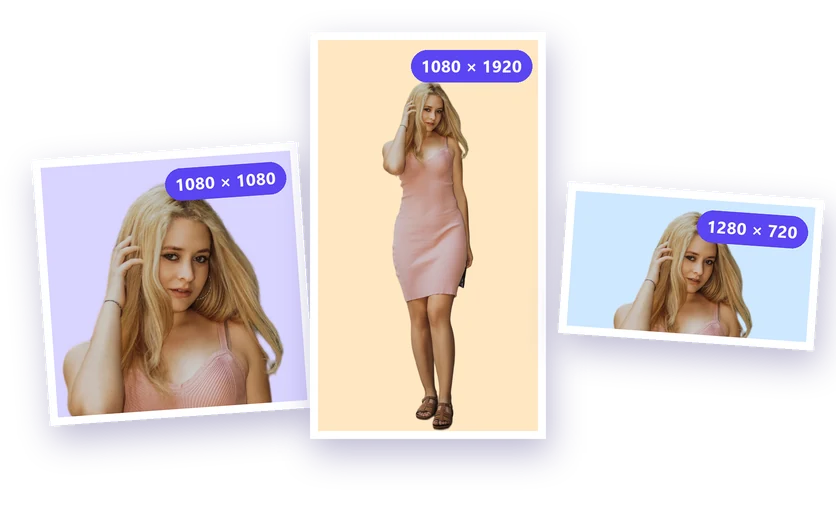
This free image resizer changes the size of your photo in a few clicks. Upload an image, open the Image Resizer and pick a ready-made size, such as Instagram post, Story, YouTube thumbnail, Facebook cover, Amazon/Shopify product image or passport photo, or type your own width and height in pixels. You can zoom and drag the photo to choose exactly what's in the frame.

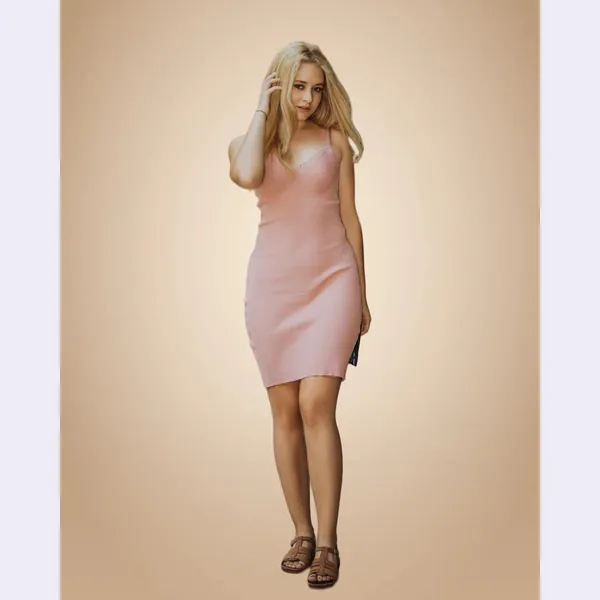
You don't have to remove the background to resize a photo: the resizer works on the original image too. But if you do, you can put the subject on a new background that fills the new shape perfectly.

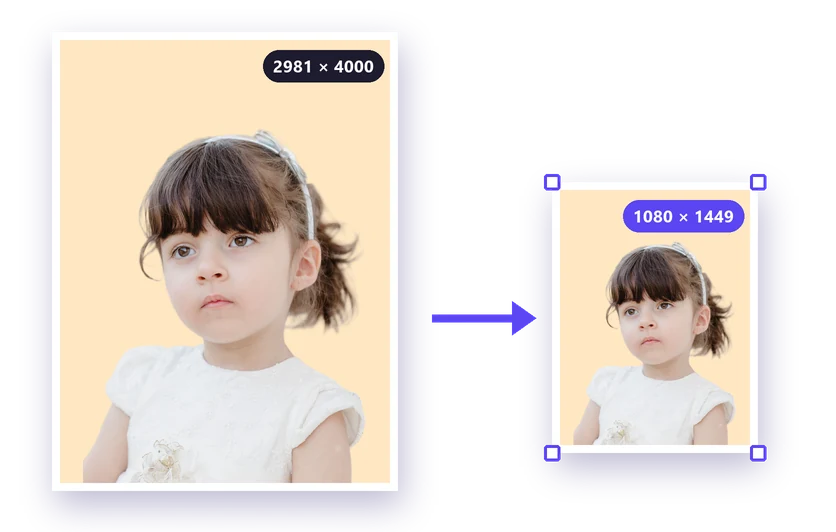
Image resizer: original photo before
Image resizer: finished result
Image resizer

Resize an image in 3 steps

  1. 01

    Upload your image

    Upload a JPG, PNG or WebP above. Removing the background is optional.

  2. 02

    Choose a size

    Open the Image Resizer, pick a preset or type a custom size, then zoom and drag the photo into place.

  3. 03

    Download

    Download as JPG, PNG, WebP or PDF. The image is resized when you download it.

Ready-made sizes

  • Instagram post

    1080 × 1080 px

    (square).

  • Instagram portrait

    1080 × 1350 px

    (4:5).

  • Story / Reels

    1080 × 1920 px

    (9:16).

  • YouTube thumbnail

    1280 × 720 px

    (16:9).

  • Facebook cover

    1640 × 624 px

  • Amazon / Shopify

    2000 × 2000 px

    large enough for zoom.

  • Passport photo

    600 × 600 px

Fit or fill: when the shape changes

  1. 1When the new size has a different shape from your photo, choose Fit to keep the whole image and fill the rest with the background, or Fill to fill the frame and crop the edges.
  2. 2With Fill, drag the photo to choose which part stays visible and use zoom to get closer.
  3. 3The preview shows exactly what you'll download.

Custom sizes and percentages

  1. 1Type any width and height up to 4,096 pixels per side, with Keep aspect ratio on or off, or scale the image by a percentage.
  2. 2Making an image larger than the original can make it look less sharp; the resizer shows a warning when that happens.

Resize many images at once

  1. 1Add several photos, choose the size on one of them and click Apply to all.
  2. 2Then Download all saves every resized image in one ZIP file.
  3. 3To make files smaller as well, set Max file size in the Download menu.
  4. 4Read our image resizer guide and the social media image sizes cheat sheet for more.

Who uses it

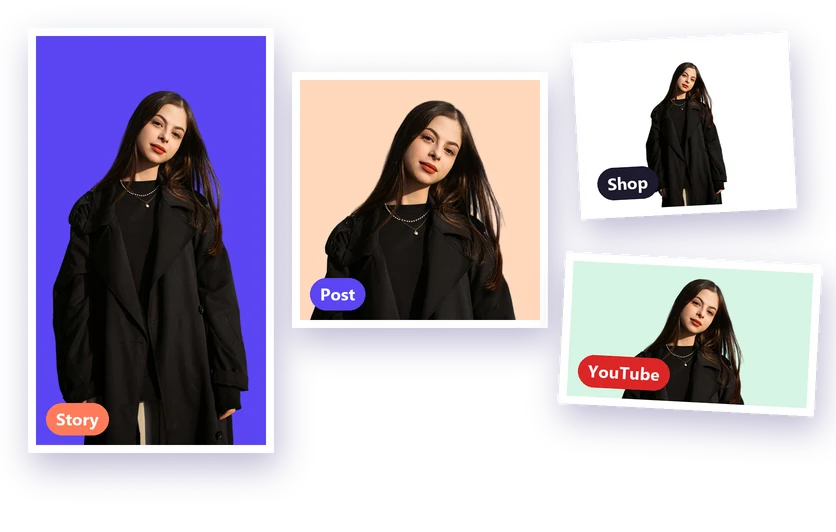
  • Social media users fitting one photo to Instagram posts, Stories, YouTube thumbnails and Facebook covers.
  • Online sellers making every product photo the same square size for their shop.
  • People filling in forms that only accept photos up to a certain size in pixels or kilobytes.
  • Bloggers and website owners making images smaller so that pages load faster.

Resizing without losing quality

  1. 1Making a photo smaller always keeps it sharp; making it larger than the original adds no new detail, so the result can look soft, and the tool warns you when that happens.
  2. 2When the new size has a different shape, choose Fit to keep the whole photo with a background around it, or Fill to fill the frame and crop the edges, then drag the photo to choose what stays in view.
  3. 3To also limit the file size, set a Max file size in the Download menu.

FAQ

Image resizer questions

More answers in the FAQ.

Upload an image
Is the image resizer free?

Yes. Resizing and downloading in full quality is free, with no account and no watermark.

Do I have to remove the background to resize?

No. You can resize the original photo right away. Removing the background is only needed if you want a new background.

Will resizing make my photo blurry?

Making it smaller keeps it sharp. Making it much larger than the original can look soft; the resizer warns you when an image is enlarged.

What's the largest size I can make?

Up to 4,096 pixels per side.

Can I resize several images to the same size?

Yes. Set the size on one image, click Apply to all, then download them all as one ZIP file.

Step-by-step guides

More free tools