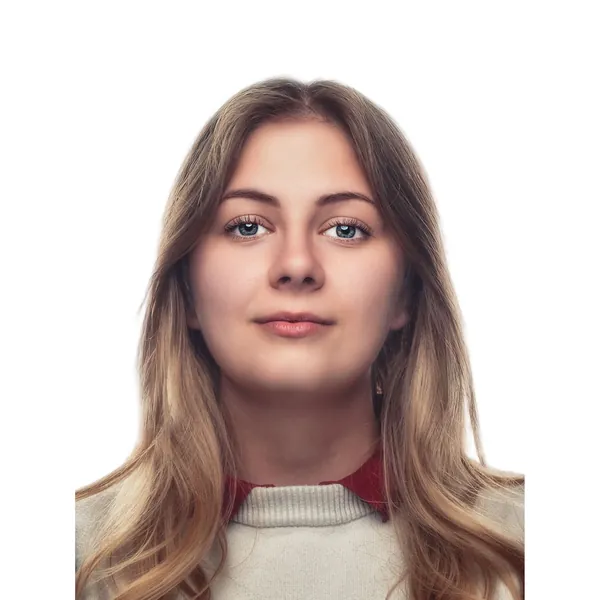
Passport photo maker · free

Passport Photo
Maker

Upload a photo and get a white background automatically. Then print several copies at the exact size on one page.

Drag & drop an image here

JPGPNGWebPup to 15 MBpaste with Ctrl+V

No image? Try one of these:

By uploading an image you agree to our Terms. Images are processed only to remove the background and are not stored.

  1. 1UploadDrop, paste or pick a photo
  2. 2Remove the backgroundOne click, hair and edges included
  3. 3DownloadEdit, resize, then download or print
  • Images never stored
  • No sign-up

How it works

Passport Photo Maker Online Free: White Background & Print

This free passport photo maker turns an ordinary phone photo into a passport, visa or ID photo. Upload your photo and click Remove background: the background is replaced with plain white automatically, the colour most countries ask for. Then open the Download menu and choose Print sheet (PDF) to get several copies at the exact official size on one page, ready to print at home or at a photo shop.

It's free, there's no account, and your photo isn't stored. You can change the background to light grey or light blue if your country needs that, brighten the photo a little and position your face before you print.

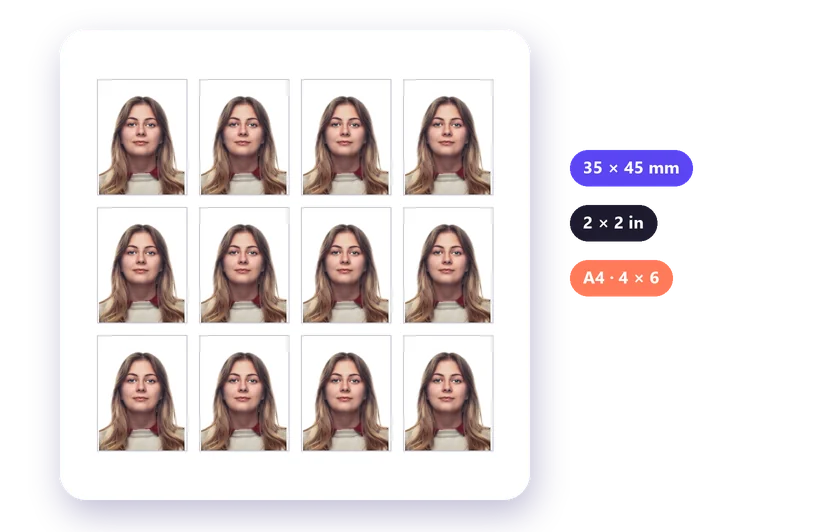
Copy of the passport photo on a print sheetCopy of the passport photo on a print sheetCopy of the passport photo on a print sheetCopy of the passport photo on a print sheetCopy of the passport photo on a print sheetCopy of the passport photo on a print sheet
A4 · 4 × 6 in✂
Passport photo 35 × 45 mm made with the Passport photo maker35 mm45 mm
Passport photo maker

Make a passport photo in 3 steps

  1. 01

    Upload your photo

    Take a photo facing the camera in even light, then upload it above. JPG, PNG and WebP work.

  2. 02

    Get a white background

    Click Remove background. The background turns white automatically; pick another colour under Background if needed.

  3. 03

    Print the sheet

    Choose Print sheet (PDF) in the Download menu, pick the size and the paper, and print at 100 %.

Passport photo sizes you can print

  • 35 × 45 mm

    most of Europe, the UK, India, Pakistan, Australia and many other countries.

  • 2 × 2 in (51 × 51 mm)

    the United States, for passports and most visas.

  • 33 × 48 mm

    Chinese visa photos.

  • 40 × 50 mm and 50 × 50 mm

    some other visas, residence permits and ID cards.

The print sheet places as many copies as fit on A4, US Letter or a 4 × 6 in photo print, with thin guide lines for cutting. Always check the official rules of the country you're applying to, including how large your head must be in the photo.
How to take a photo that gets accepted

  • Stand facing a window during the day, so your face is evenly lit without shadows.
  • Ask someone to take the photo from about 1–1.5 metres away, at eye level. Close selfies distort the face.
  • Look straight at the camera with a neutral expression, mouth closed and eyes open.
  • Include your head, neck and shoulders, with space above your head.
  • Remove glasses if your country doesn't allow them, and keep hair away from your eyes.

Get the size and position right

  1. 1Use Adjust → Crop to subject to trim the empty space around you, then Padding to add an even margin.
  2. 2For a square photo, such as the US 2 × 2 in, open the Image Resizer, choose Passport photo and drag your face into the centre.
  3. 3If the photo looks dark, raise the brightness a little, but don't change how you look: retouching isn't allowed in passport photos.

Print at the exact size

  1. 1Print the PDF at 100 % or "actual size", never "fit to page", and measure one photo with a ruler before cutting.
  2. 2Photo paper gives the best result.
  3. 3No photo printer?
  4. 4Send the PDF to a print shop as a 4 × 6 in print; it costs very little.
  5. 5Our passport photo print sheet guide explains every step in detail.

Digital photos for online applications

  1. 1Many applications now ask for a digital photo.
  2. 2Use the Passport photo size in the Image Resizer or type the exact pixel size the form asks for, then download as JPG.
  3. 3If the form has an upload limit, set Max file size in the Download menu.

Who uses the Passport Photo Maker

  • Travellers renewing a passport or applying for a visa, who need the right size without a trip to a photo booth.
  • Students and job seekers filling in applications that ask for an ID photo with a plain background.
  • Families making photos for children's passports at home, with as many tries as it takes.
  • People living abroad who need their home country's size, such as 2 × 2 in for the US or 35 × 45 mm for the UK and the EU.

What makes a passport photo accepted

  1. 1Offices check the size, the background and the position of the head.
  2. 2The frame here has the exact size and a guide for the top of the head and the chin, and the background becomes plain white, light grey or light blue.
  3. 3What the tool can't do for you: look straight into the camera with a neutral face, take off your glasses if your country asks for it, and use even light without shadows on your face.
  4. 4Always compare the result with your country's official rules before you print or upload it.

FAQ

Passport photo maker questions

More answers in the FAQ.

Upload an image
Is this passport photo maker free?

Yes. Removing the background, adding a white background and downloading the print sheet are free, without an account or a watermark.

Will my passport photo be accepted?

The tool gives you the right background and size, but acceptance also depends on the photo itself: even light, a neutral expression, your face fully visible and a recent photo. Always check the official rules of your country.

Can I print passport photos at home?

Yes. Print the PDF at 100 % on photo paper and cut along the lines. Some authorities only accept digital photos or photos from approved photographers, so check before you print.

Which background colour do I need?

Most countries ask for plain white or off-white. Some ask for light grey or light blue. Choose any colour under Background after removing the background.

Is my photo stored?

No. Your photo is processed only to remove the background and is not stored. See our privacy policy.

Step-by-step guides

More free tools