Every platform crops photos to its own shape. Upload the wrong size and faces get cut off, products shrink or the picture looks blurry. Here are the social media image sizes that matter most, and how to resize your photos to fit in one click.
Instagram image sizes
- Square post: 1080 × 1080 pixels (1:1).
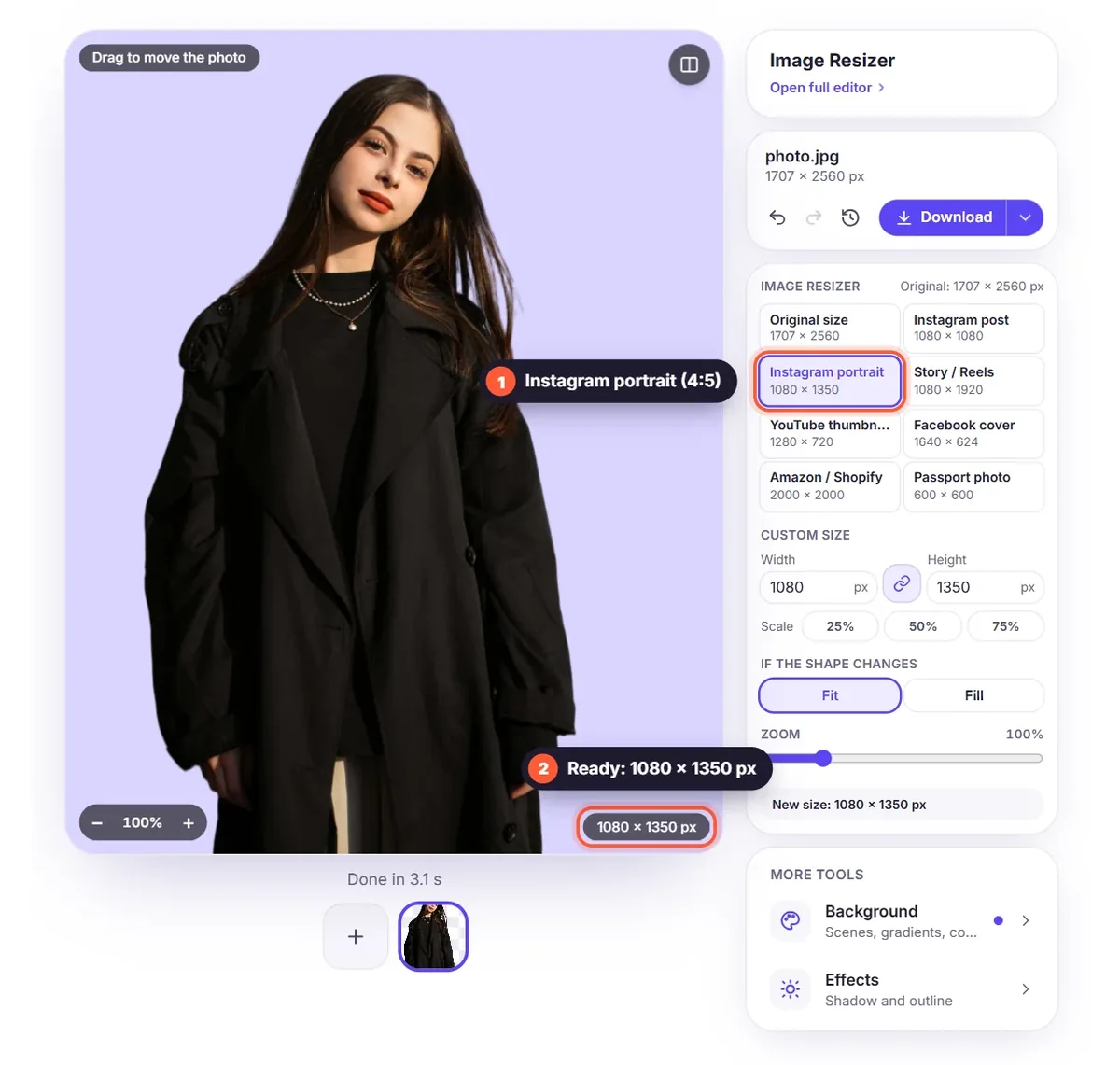
- Portrait post: 1080 × 1350 pixels (4:5). It takes up more of the screen, so it's often the best choice.
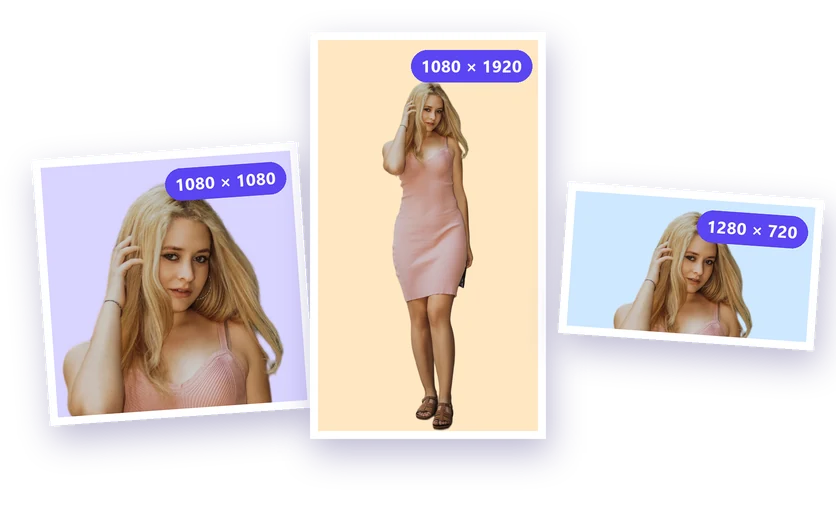
- Story and Reels: 1080 × 1920 pixels (9:16). Keep text away from the top and bottom edges.
- Profile picture: at least 320 × 320 pixels, shown as a circle.
YouTube, Facebook and TikTok
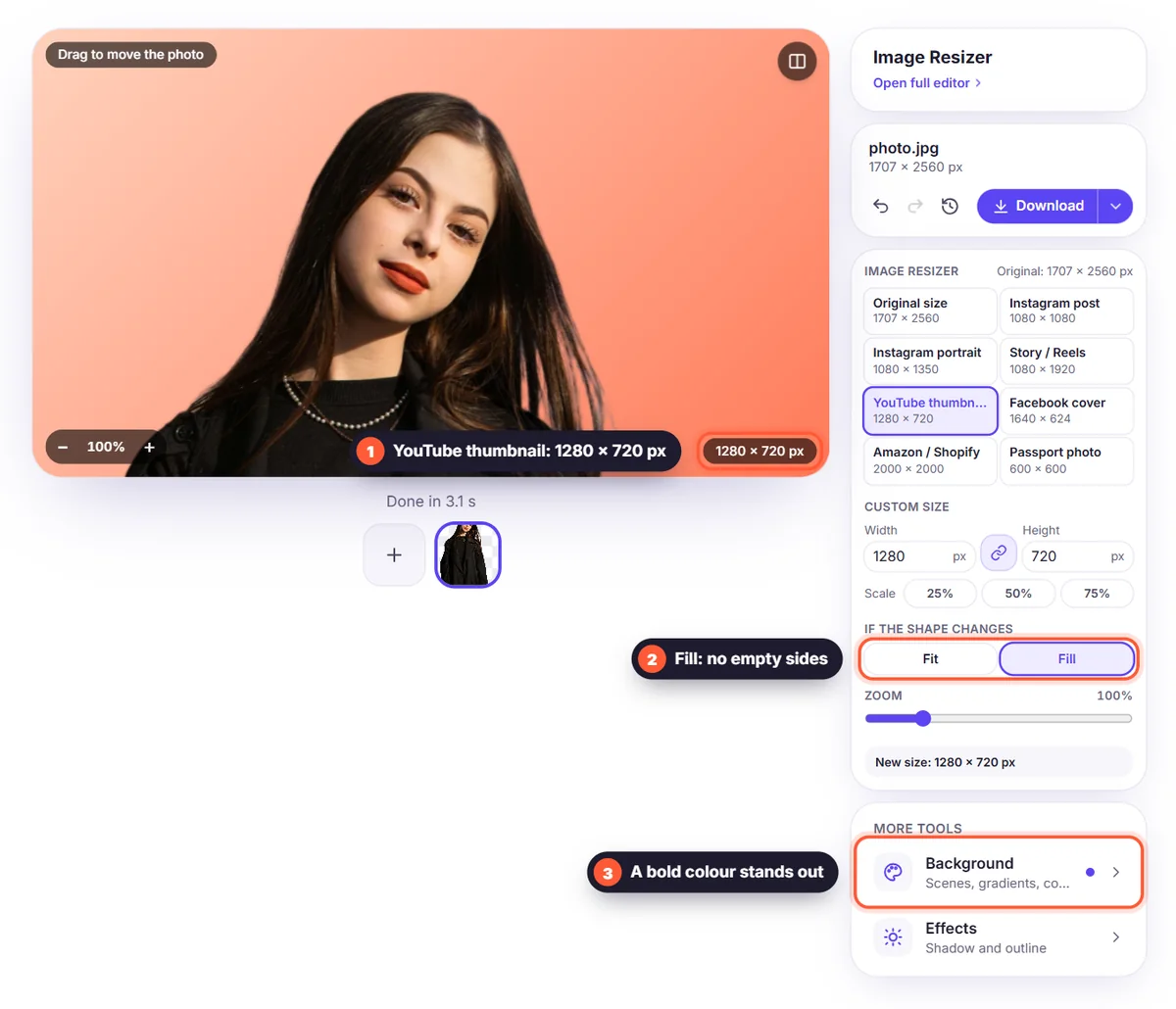
- YouTube thumbnail: 1280 × 720 pixels (16:9). A cutout of a face on a bold colour stands out.
- Facebook cover: 1640 × 624 pixels. Keep the important part in the middle; phones crop the sides.
- Facebook and LinkedIn posts: 1200 × 630 pixels for link images, 1080 × 1080 for square posts.
- TikTok: 1080 × 1920 pixels, the same as Stories.
Online shops and marketplaces
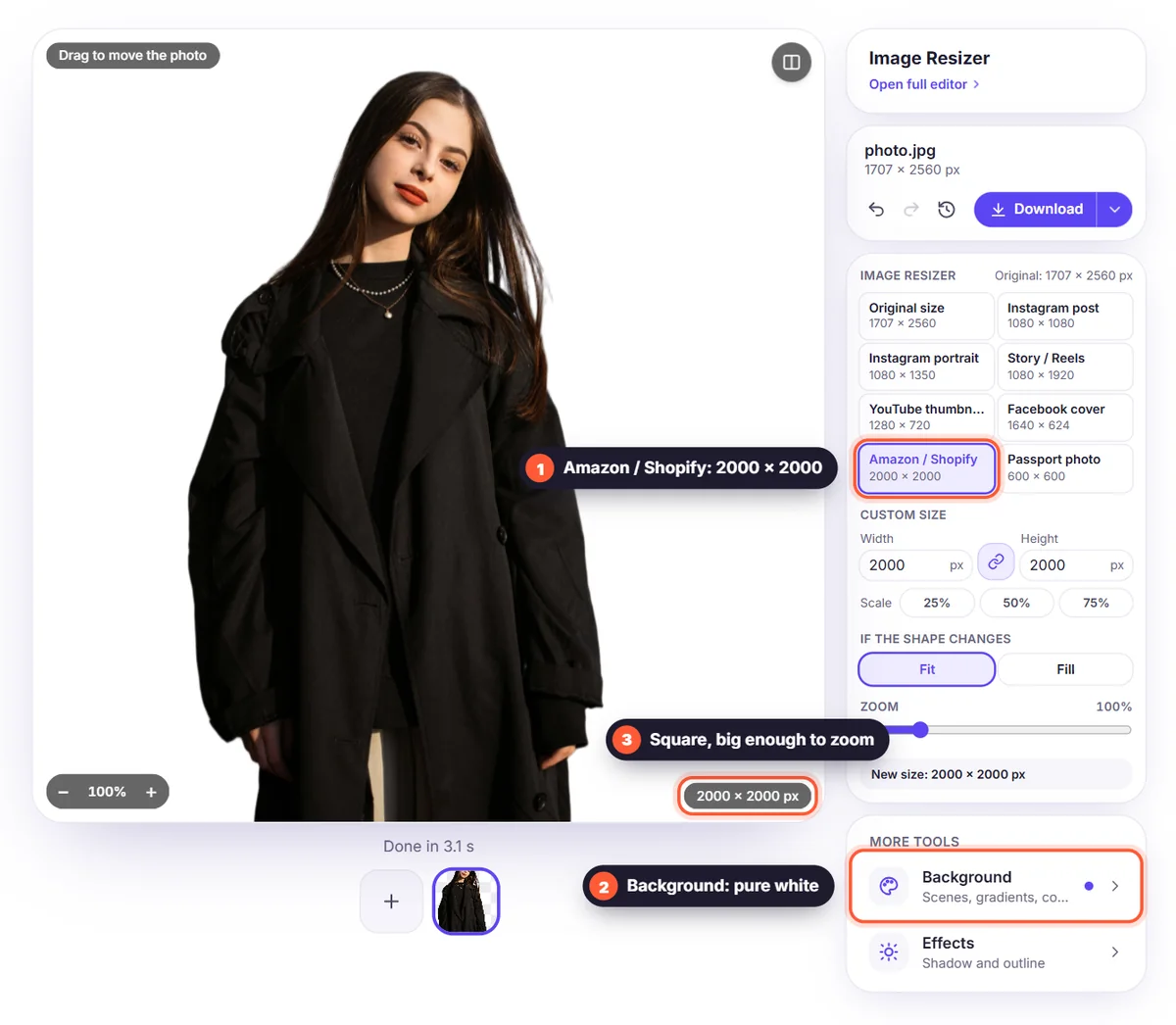
Amazon, Shopify and Etsy work best with square product photos of at least 2000 × 2000 pixels, so shoppers can zoom in. Amazon also asks for a pure white background on the main image. See our guide to product photos on a white background.
How to resize a photo for social media
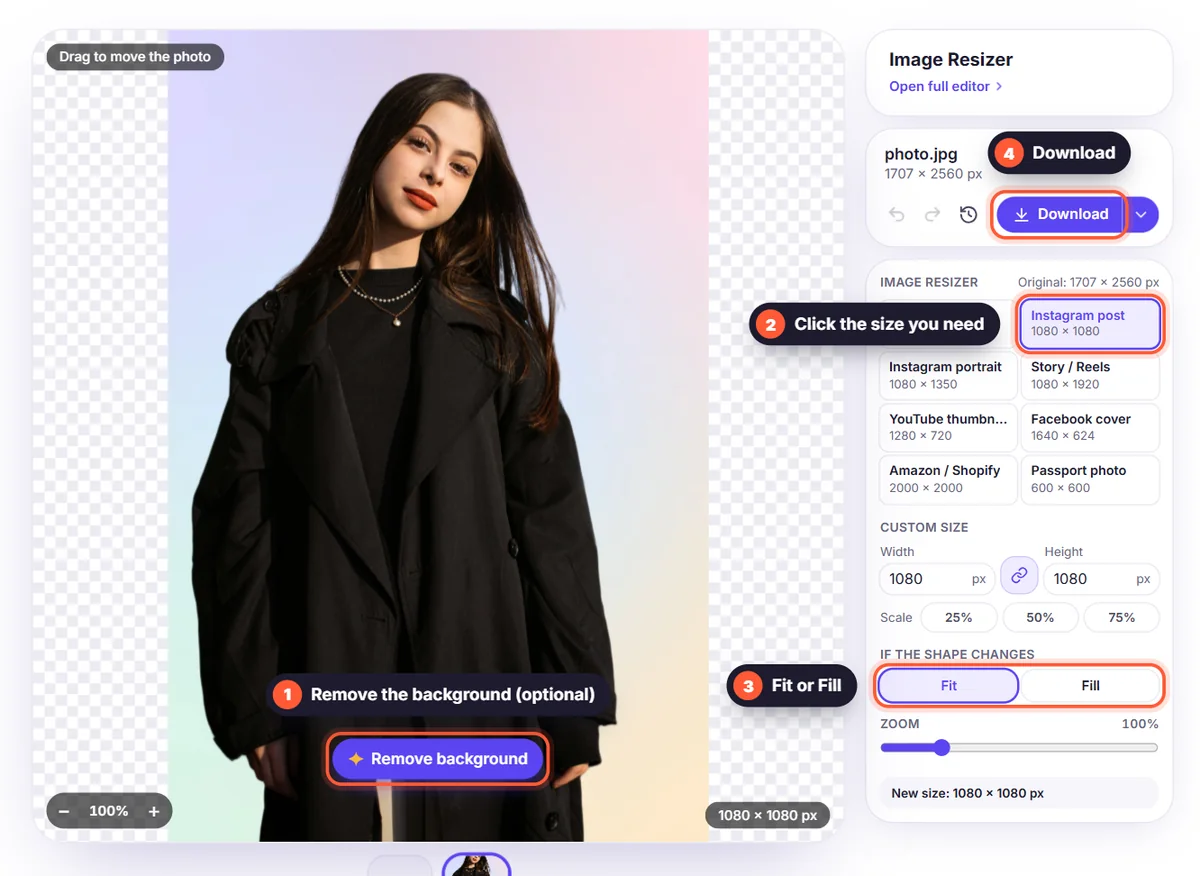
- Upload the photo to the background remover and resizer.
- Click Remove background, then choose a background: a brand colour, a soft blur of the original, or white for shops.
- Open Image Resizer and click the size you need, such as Instagram post, Story / Reels or YouTube thumbnail.
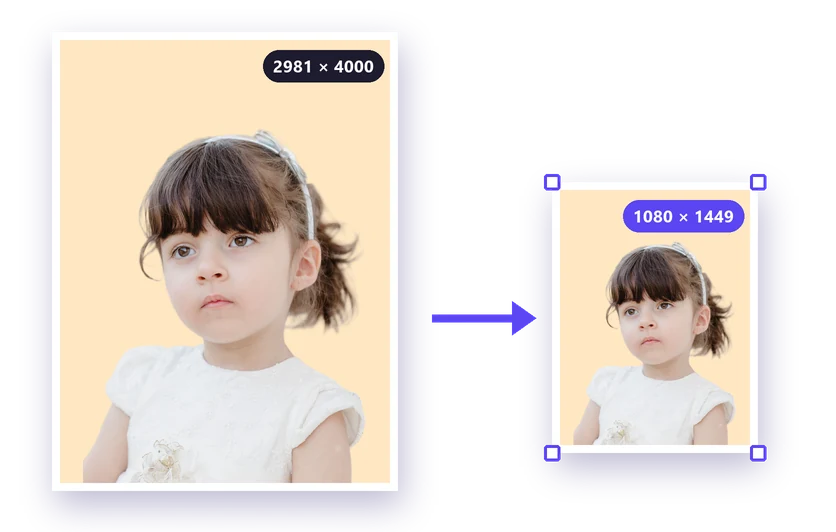
- Choose Fit to keep the whole subject with background around it, or Fill to fill the frame, then download.
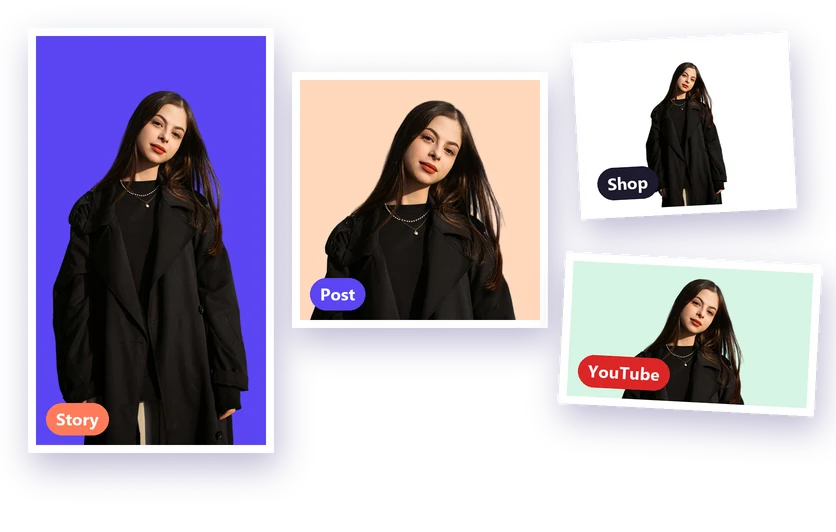
Posting the same photo in several places? Download it once per size: the background stays the same, and each file is made for its platform. To make a whole set match, add several photos and use "Apply to all".
Tips for photos that look good everywhere
Leave some space around the subject, because each platform crops a little differently. Use one background colour across your posts to make your feed recognisable. And always start from the original photo, not a screenshot: resizing down keeps it sharp. Learn more in our image resize guide and the image resizer guide.