An image resize changes the number of pixels in a photo. It sounds simple, but it affects sharpness, file size and how the picture fits on a page. This guide explains the basics and shows how to resize an image for free without it looking stretched or blurry.
What an image resize changes
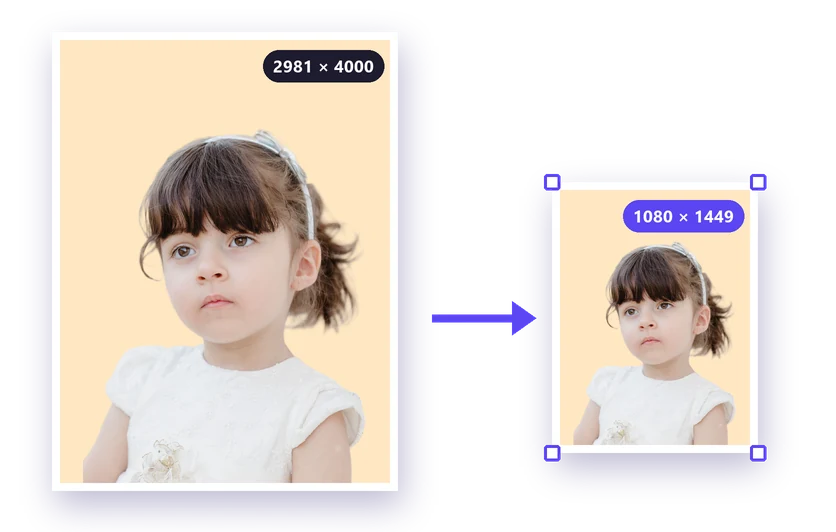
- Pixel dimensions: the width and height of the image, for example 4000 × 3000 pixels.
- File size: fewer pixels means a smaller file. Halving the width and height leaves a quarter of the pixels.
- Sharpness: making an image smaller keeps it sharp; making it larger can't add detail.
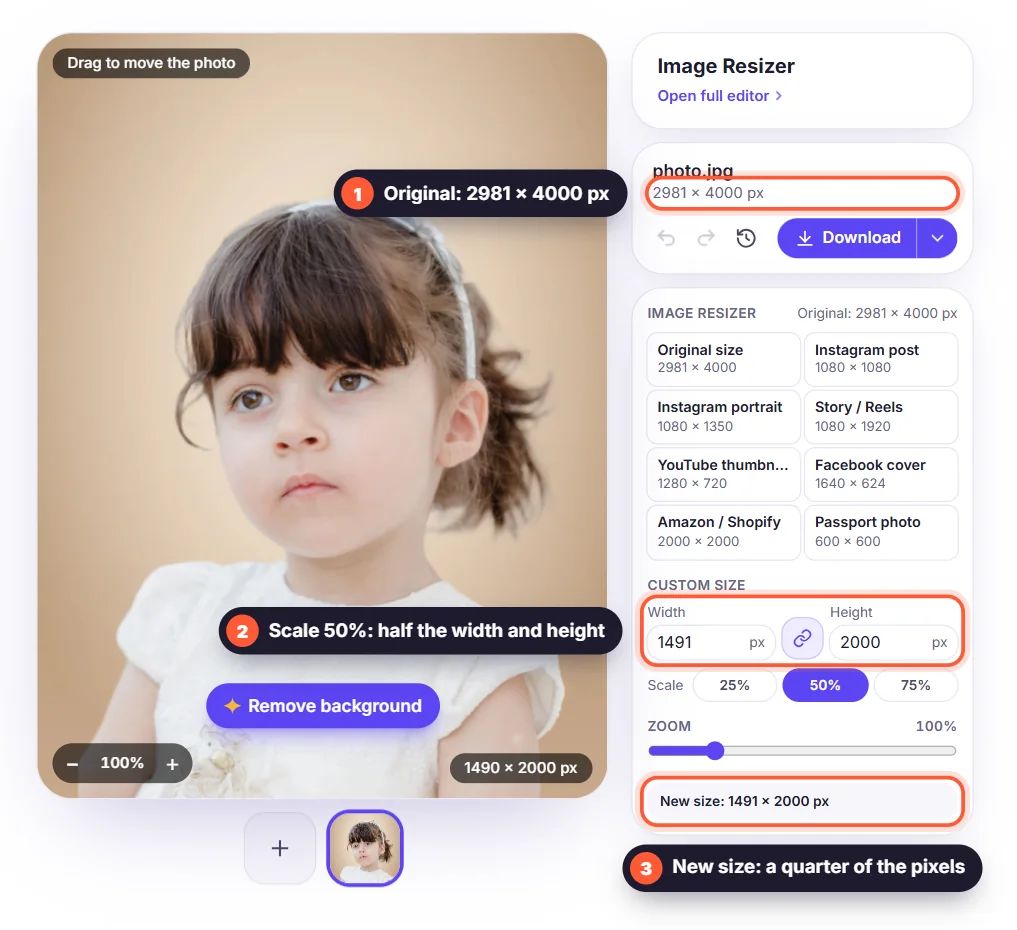
To calculate the new pixels, software uses interpolation: it looks at neighbouring pixels and works out new ones. Reducing an image (downsampling) combines pixels and keeps fine detail. Enlarging (upsampling) has to invent pixels, so edges become soft.
Aspect ratio: why photos look stretched
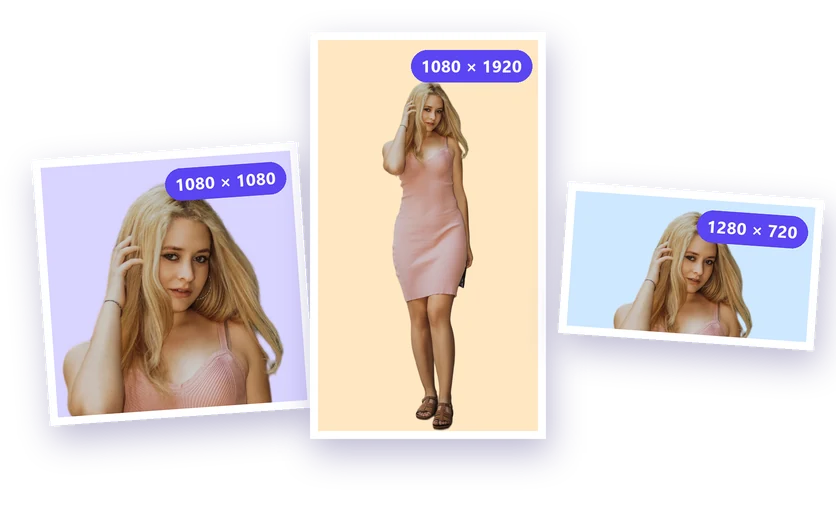
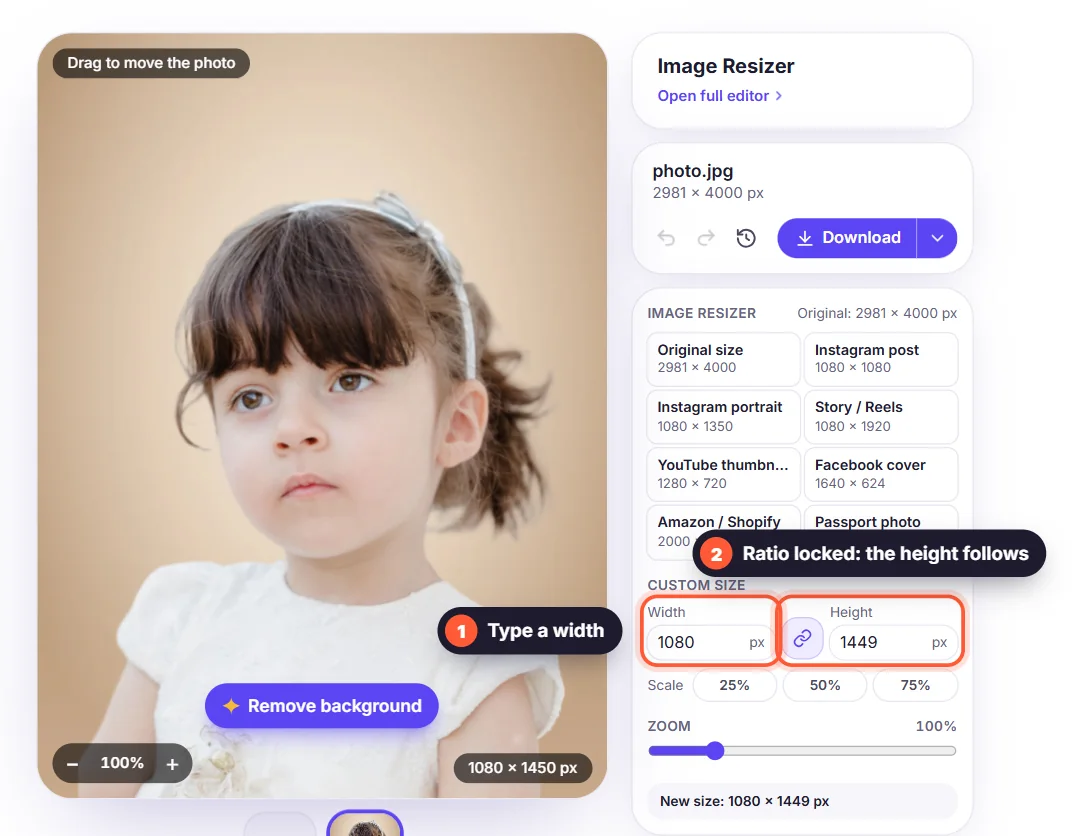
The aspect ratio is the relationship between width and height, such as 1:1 (square), 4:5, 16:9 or 9:16. If you change the width without changing the height in proportion, the image is stretched or squished. A good image resize tool keeps the ratio locked, and when you need another shape it adds background around the image or crops the edges instead of distorting it.
How to resize an image for free
- Open the free image resize tool and upload your photo.
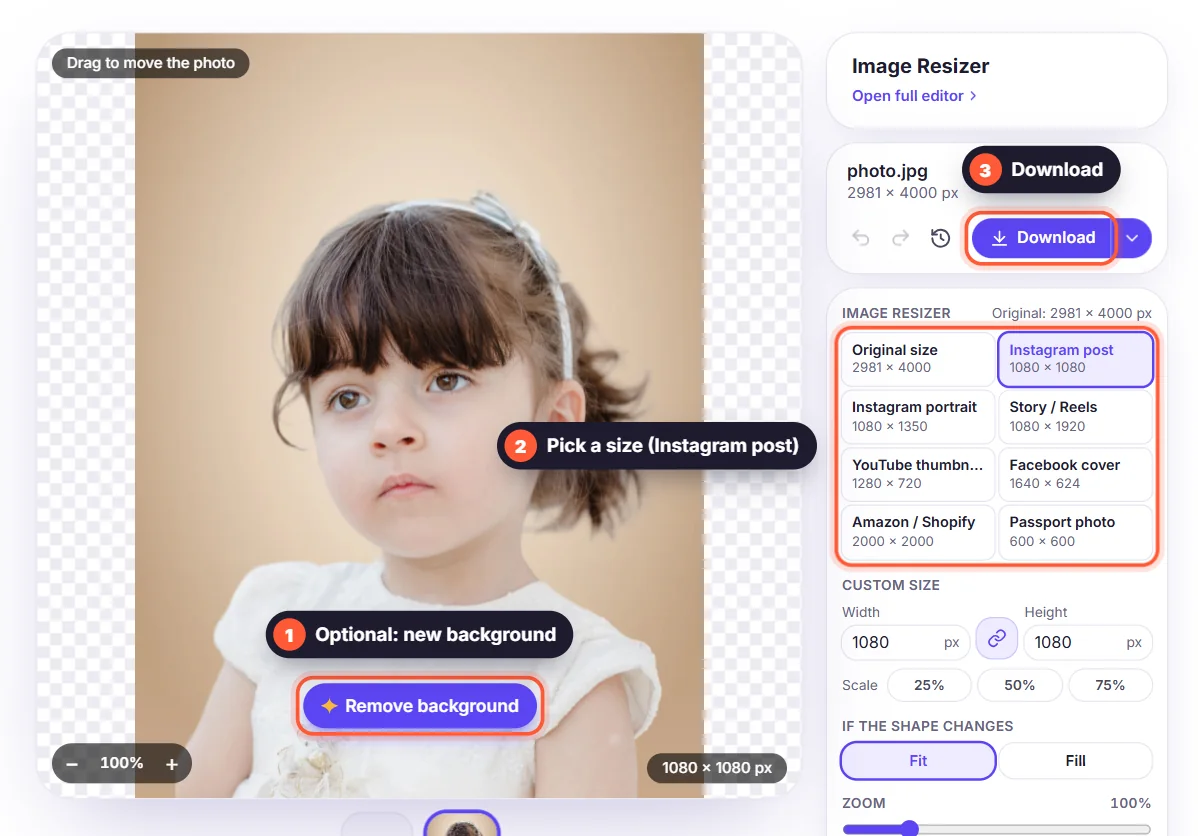
- Click Remove background if you want a new background, or skip it to keep the photo as it is.
- Click Image Resizer, then pick a ready-made size, a percentage such as 50%, or a custom width with the aspect ratio locked.
- Download your image as PNG, WebP, JPG or PDF in the new size.
Make it smaller, not larger
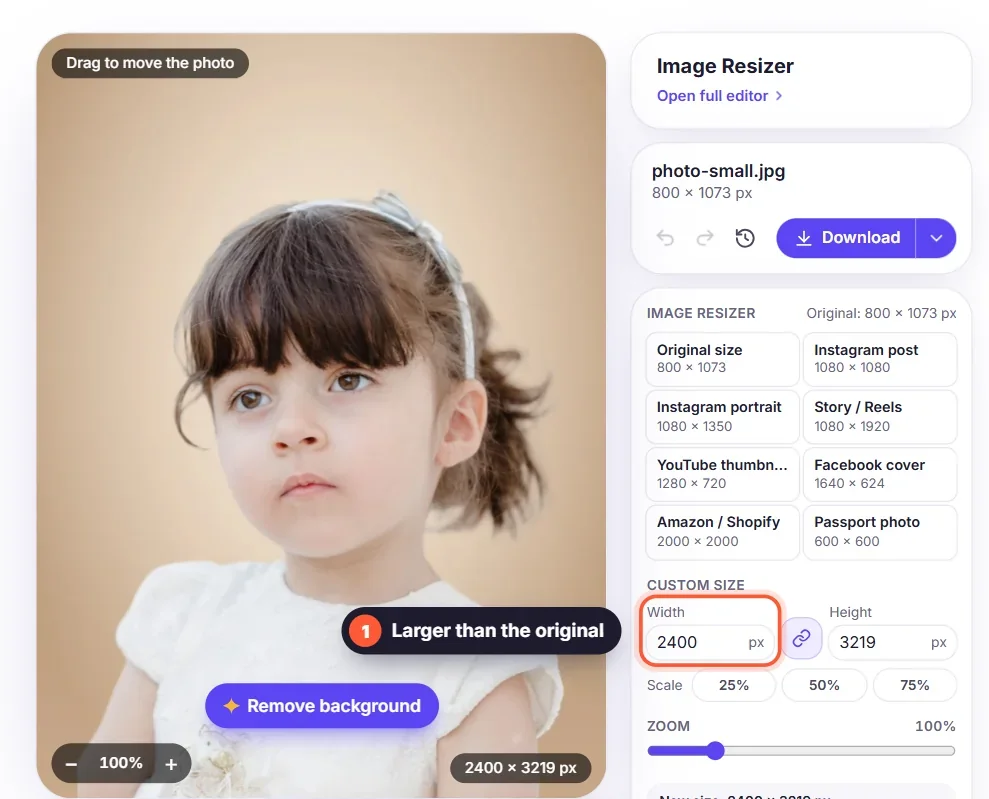
For the best quality, start from the largest original you have and only resize down. A modern phone photo is 4000 pixels wide or more, while most websites show images at 1200 to 2000 pixels and social media at 1080. Enlarging a small photo by more than about 20% makes it look soft, so the editor warns you when that happens.
Which size do you need?
- Website images: 1600 to 2000 pixels wide is plenty for a full-width picture.
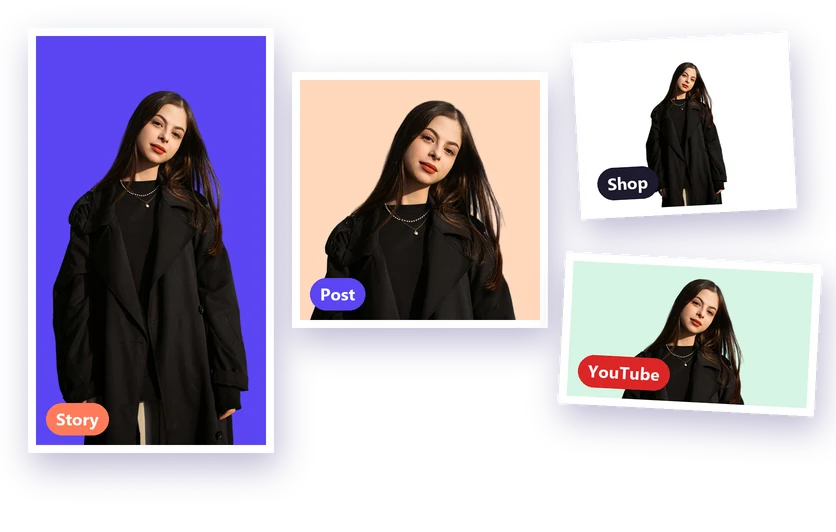
- Social media: 1080 pixels wide for Instagram; see our social media image sizes.
- Online shops: 2000 × 2000 squares on a white background.
- Email and documents: 800 to 1200 pixels keeps attachments small.
Ready to try it? Our image resizer guide walks through every option, including resizing several images at once.