Blur background · free

Blur Photo
Background

Keep the subject sharp and softly blur everything behind it, like portrait mode on a professional camera.

Drag & drop an image here

JPGPNGWebPup to 15 MBpaste with Ctrl+V

No image? Try one of these:

By uploading an image you agree to our Terms. Images are processed only to remove the background and are not stored.

  1. 1UploadDrop, paste or pick a photo
  2. 2Remove the backgroundOne click, hair and edges included
  3. 3DownloadEdit, resize, then download or print
  • Images never stored
  • No sign-up

How it works

Blur Background of Photo Online Free: Portrait Mode Effect

A blurred background makes the subject stand out and hides distractions such as a messy room or people walking by. Professional cameras do it with a wide-open lens; this tool does it with AI. Upload a photo and click Remove background: the subject is cut out and the original background is blurred automatically behind it.

Drag the slider to choose how strong the blur is, from a subtle softening to a creamy portrait look. It's free, works on any phone or computer and downloads in full quality without a watermark.

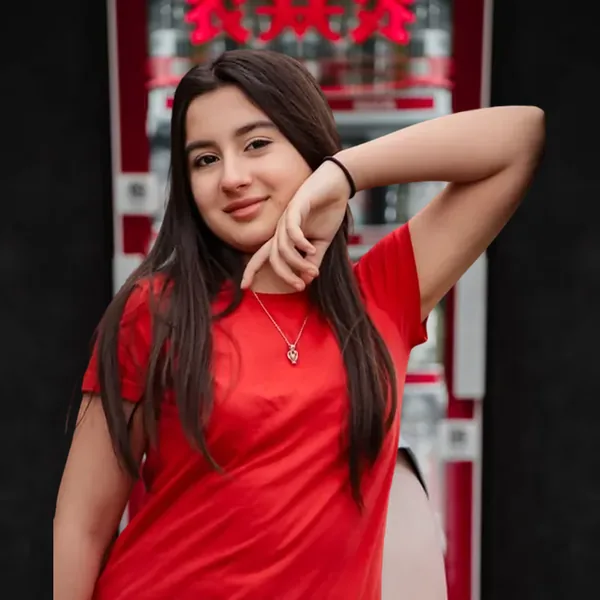
Blur background: original photo before
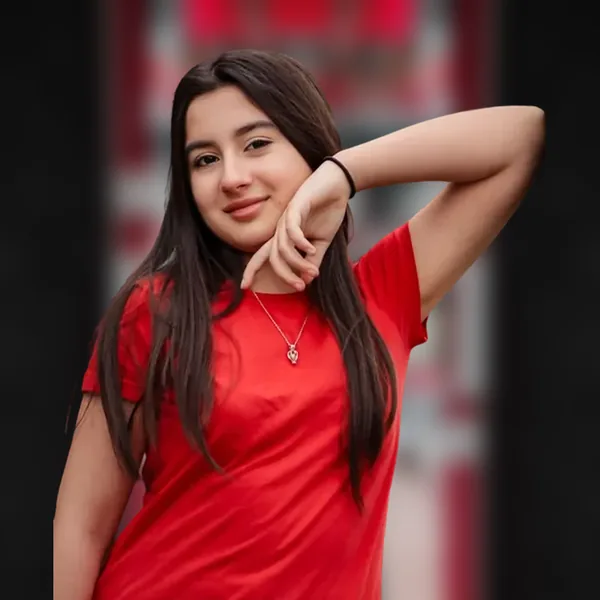
Blur background: finished result
Blur background

Blur a photo background in 3 steps

  1. 01

    Upload the photo

    Upload a portrait, product or pet photo above. JPG, PNG and WebP work.

  2. 02

    Remove the background

    Click Remove background. The background is blurred automatically while the subject stays sharp.

  3. 03

    Adjust and download

    Set the Blur strength under Background, then download as JPG, PNG or WebP.

How strong should the blur be?

  • Light blur: keeps the place recognisable while removing distracting details. Good for travel and event photos.
  • Medium blur: the classic portrait look for profile pictures and team photos.
  • Strong blur: turns the background into soft colours and light, so all attention goes to the subject.
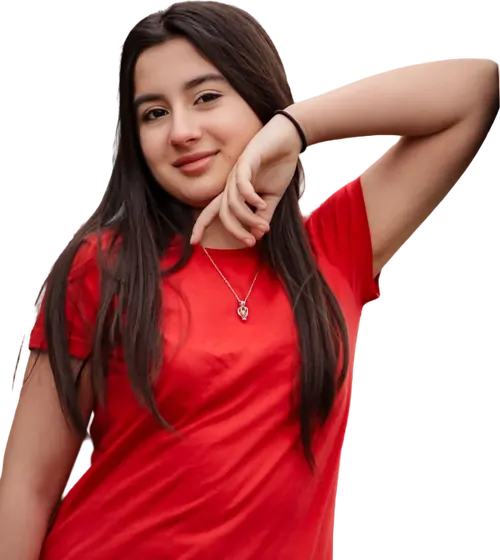
Why blur instead of replacing the background?

  1. 1A blur keeps the original light, colours and atmosphere of your photo, so the result always looks natural, with no mismatched lighting or perspective.
  2. 2It's the safest choice for profile pictures, portraits and photos where the setting matters but shouldn't distract.
  3. 3Want a completely new background instead?
  4. 4Choose a colour, scene or photo under Background.

Tips for a realistic portrait effect

  • Keep some distance between the subject and the background in the original photo.
  • Make sure the subject itself is sharp; the blur can't fix a blurry face.
  • For hair and fine edges, start from a sharp photo; touch up any spot with the Brush.
  • Add a little brightness in Adjust if the subject looks darker than the blurred background.

Use it for profiles and social media

  1. 1A soft blur is ideal for LinkedIn, CVs and team pages.
  2. 2Resize the photo with the Image Resizer, for example to an Instagram post or a Story, and download.
  3. 3See our guide to a professional profile picture for more tips.

Who uses it

  • Phone users whose camera has no portrait mode, or who forgot to turn it on.
  • Professionals who want a calm background for a profile photo without losing the real place.
  • Online sellers who want the product in focus while keeping a natural setting.
  • Travellers who want to hide a crowd or a messy room but keep the atmosphere.

How the blur is made

  1. 1First the subject is cut out, so it stays perfectly sharp.
  2. 2Then the original photo behind it is blurred, softly close to the subject and more strongly towards the edges, much like a camera with a wide aperture.
  3. 3Because it's your own photo, the light and colours always match.
  4. 4Choose Light to keep the place recognisable, Medium for the classic portrait look, or Strong to turn the background into soft colour.

FAQ

Blur background questions

More answers in the FAQ.

Upload an image
Is blurring the background free?

Yes. Blurring the background and downloading in full quality is free, without an account or a watermark.

Can I change how strong the blur is?

Yes. Use the Blur strength slider under Background, from a light softening to a strong portrait blur.

Will the subject stay sharp?

Yes. Only the background is blurred; the cutout of the subject stays at full sharpness.

Can I blur the background on my phone?

Yes. It works in any mobile browser on iPhone and Android, without installing an app.

Can I switch to a different background later?

Yes. Open Background at any time and choose a colour, scene or your own photo instead of the blur.

Step-by-step guides

More free tools