Most background remover apps ask you to install something, create an account, watch ads or pay before you can save in full quality. You can skip all of that: you can remove the background from a photo on your phone right in the browser, on iPhone and Android alike. This guide shows the steps on both systems, how to edit and save the result, and how to take phone photos that give clean cutouts.
Remove a photo background on your phone in 4 steps
- Open bgswaper.com in Safari, Chrome or any other mobile browser.
- Tap the upload button and choose a photo from your gallery, or take a new one with the camera.
- Tap Remove background and wait a few seconds.
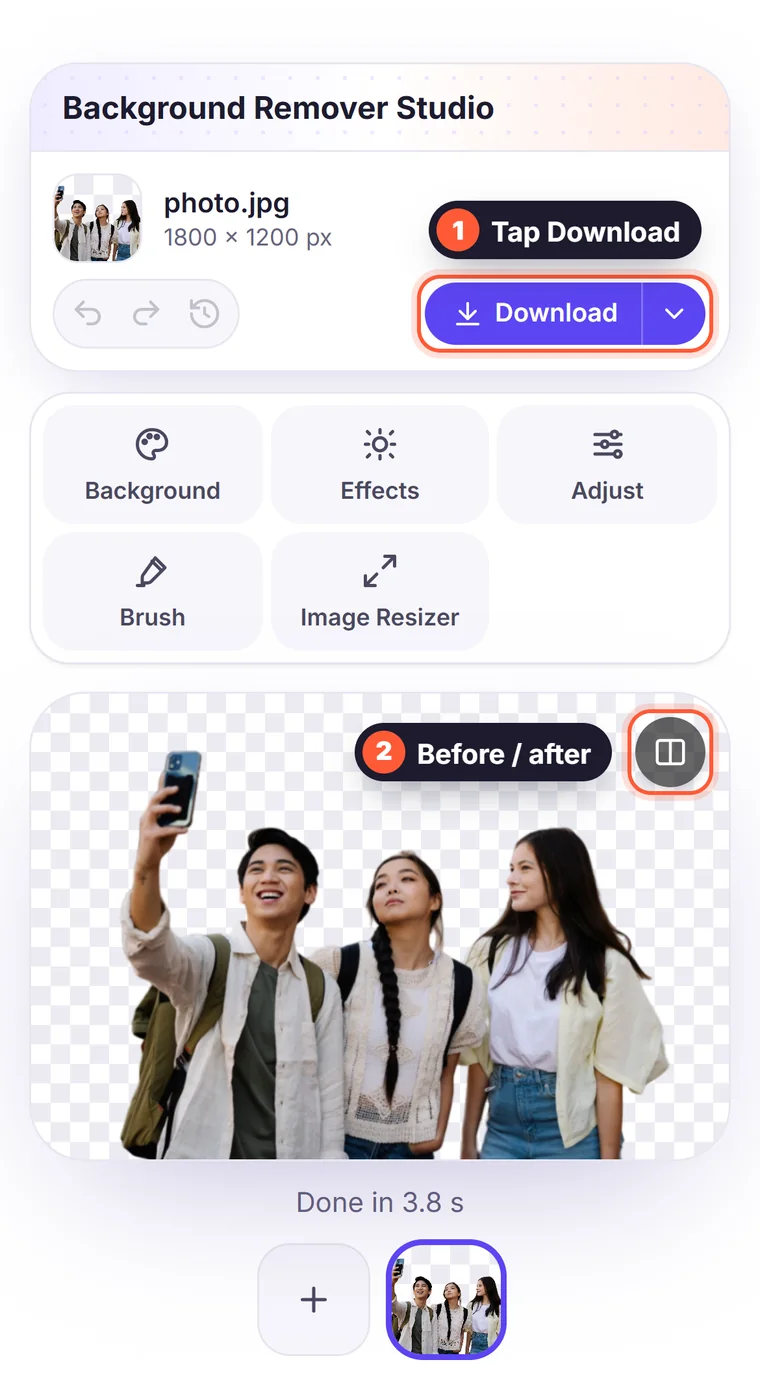
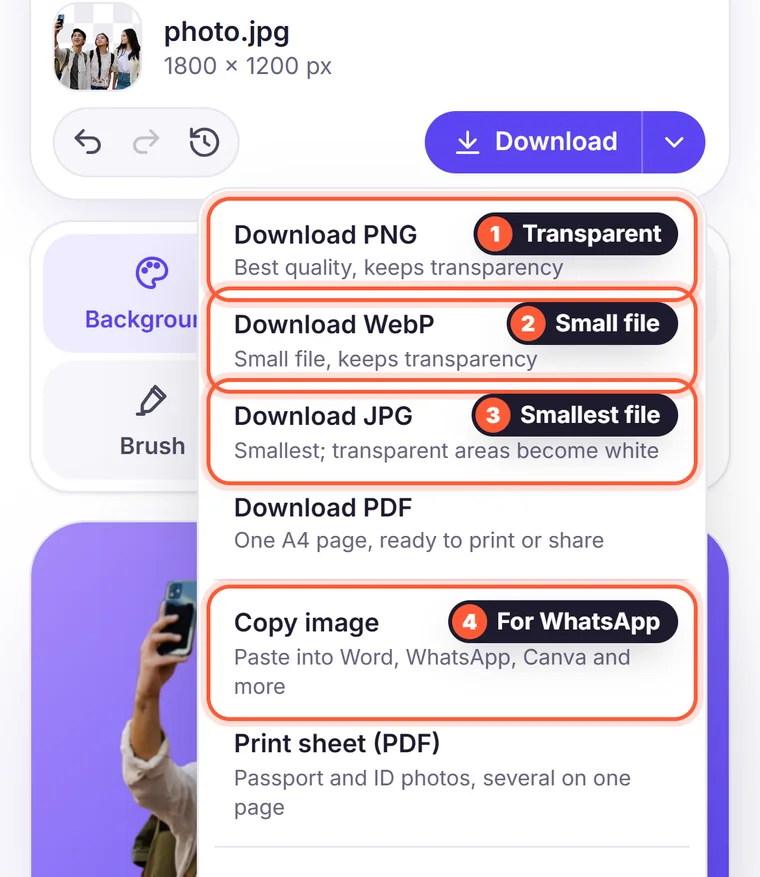
- Tap Download. The transparent PNG is saved to your downloads or photos.
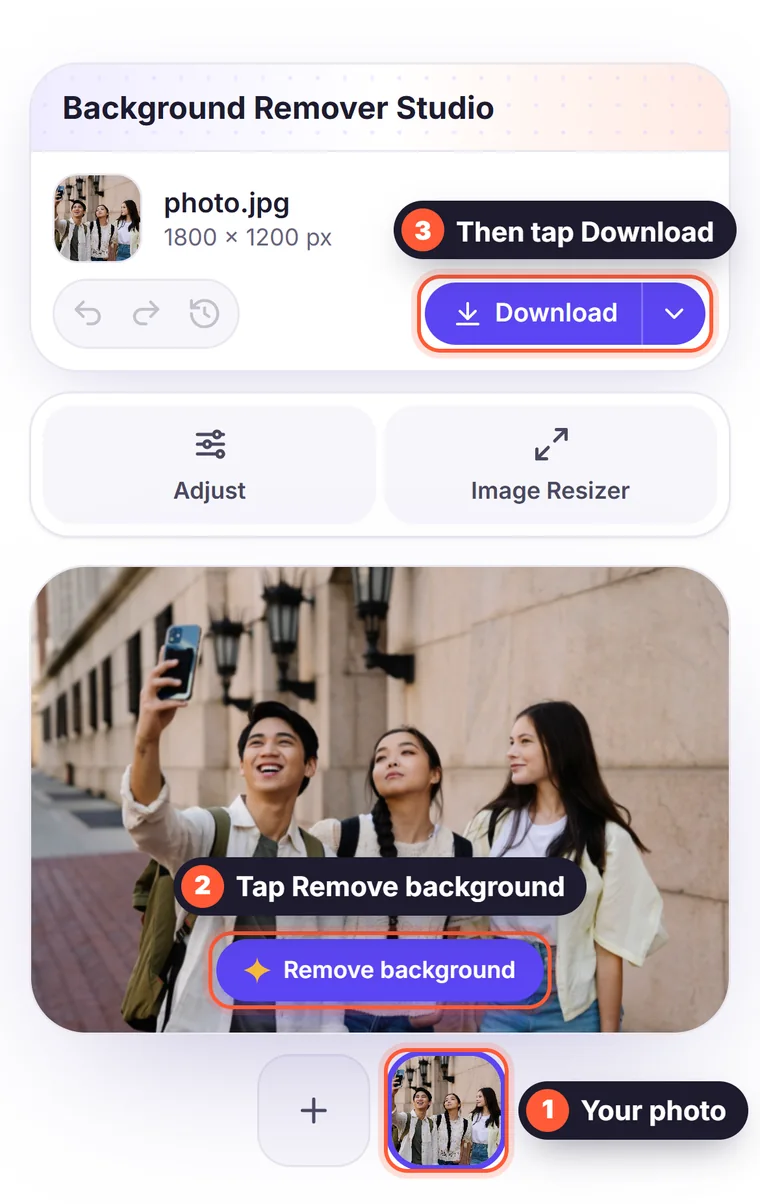
That's it: no app, no sign-up, no watermark. The same steps work on tablets and computers.
On iPhone and iPad
- Open the site in Safari (or Chrome) and tap Upload Image. Choose Photo Library to pick an existing photo, or Take Photo to use the camera.
- After removing the background, tap Download. Safari asks whether to download the file: tap Download, then open it from the Downloads folder in the Files app.
- To save it to your Photos, open the image in Files, tap the share button and choose Save Image.
- Tip: add the site to your home screen (Share → Add to Home Screen) to open it like an app.
On Android
- Open the site in Chrome, Samsung Internet or another browser and tap Upload Image. Pick a photo from your gallery or files, or take a new one.
- After removing the background, tap Download. The file is saved in the Downloads folder and appears in your gallery app under Downloads.
- Tip: in Chrome, open the menu and choose Add to Home screen for one-tap access.
Change the background on mobile too
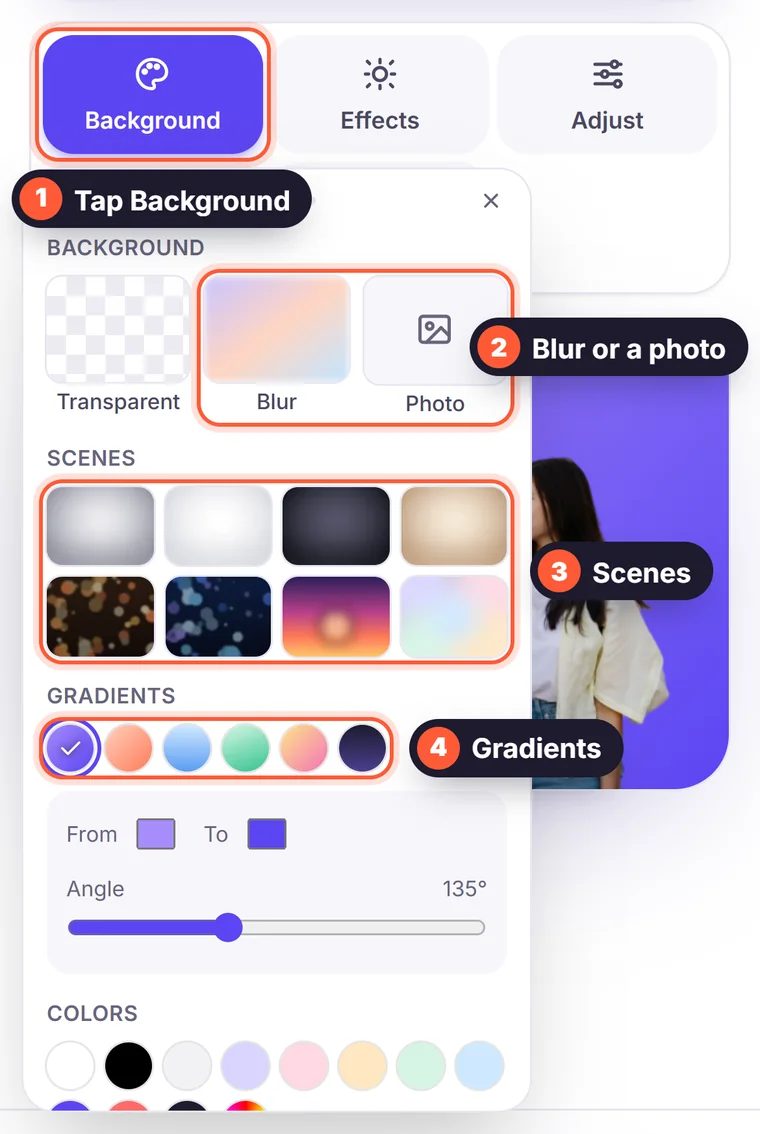
In the editor, tap Background to put the cutout on a colour, a gradient, a ready-made scene, a blur of the original photo, or another photo from your phone. Everything is touch-friendly, and you can undo any change. See how to change the background of a photo for ideas.
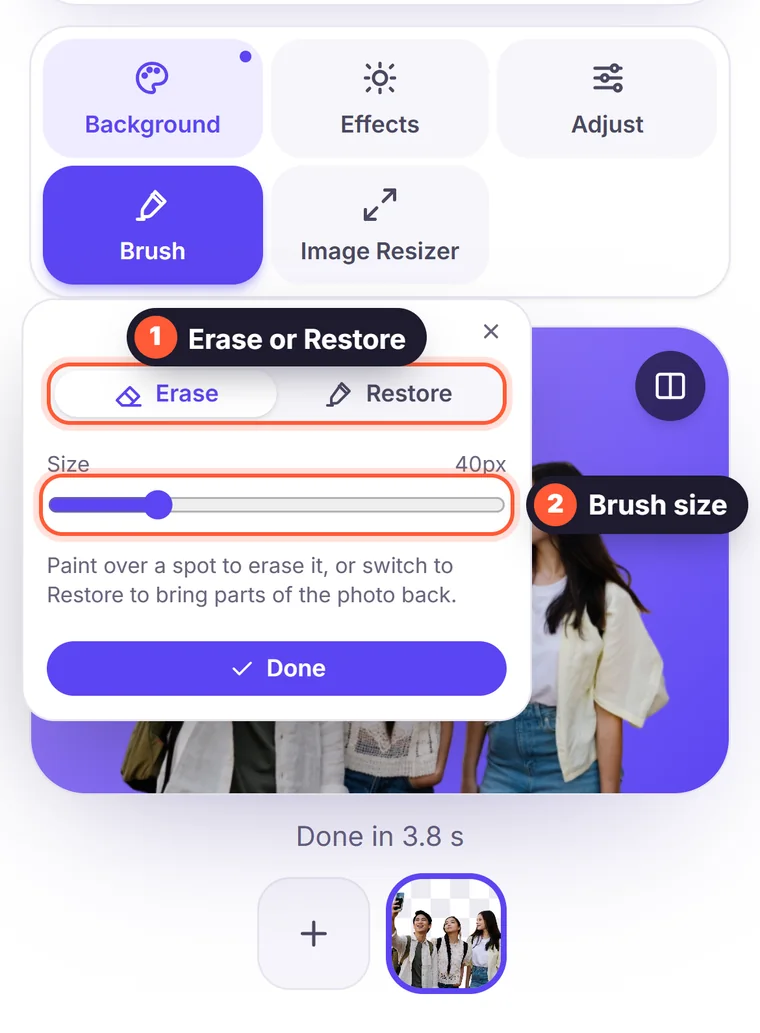
The other tools work on a phone as well: Effects for a shadow or a sticker-style outline, Adjust for brightness, rotation and cropping, Brush to erase or restore small areas with your finger, and the Image Resizer for Instagram posts, Stories, YouTube thumbnails and other ready-made sizes.
Which format should you save on a phone?
- PNG: keeps the transparent background. Use it for stickers, logos and edits in other apps.
- JPG: smallest file, but transparent areas become white. Use it when you've added a coloured background and want to share the photo.
- WebP: transparent and small. Good for websites, though some older apps can't open it.
- Copy image: copy the result and paste it straight into WhatsApp Web, an email or a document, without saving a file.
Why use your browser instead of a background remover app?
- Nothing to install, so it doesn't take up storage or ask for permissions.
- No account and no pop-ups asking you to upgrade before you can save.
- Your images are processed and then discarded, never stored.
- Full-quality downloads for free, without a watermark.
- It works the same on your phone, tablet and computer, so you can start on one and finish on another.
Tips for better phone photos
- Light: shoot in good light, ideally near a window during the day. The AI finds edges more easily in a well-lit photo.
- Contrast: a subject that stands out from the background, such as a dark jacket against a light wall, gives the cleanest edges.
- Space: keep a little space around the subject so no part of it is cut off at the edge of the frame.
- Focus: tap the screen on the subject to focus on it, and hold the phone steady.
- Zoom: avoid digital zoom; move closer instead. Use the main camera rather than the ultra-wide lens.
- Portrait mode: fine to use, but turn off heavy beauty filters, which blur hair and edges.
For more advice, read our 7 tips for photos that give perfect cutouts.
Fix the details with your finger
On a small screen, zoom in with two fingers to check the edges. If a bit of background remains, open Brush, choose Erase and paint over it; to bring back part of the subject, choose Restore. Set a small brush size for detailed areas. Every stroke can be undone with the undo button.
Process several photos from your gallery
You can select several photos at once in the upload dialog. They're processed one after another and shown as thumbnails below the editor, so you can tap to switch between them. When they're all done, Download all saves them in one ZIP file, or in one PDF with a page per image.
What you can make with your phone
- Profile pictures: a clean background for LinkedIn, WhatsApp or your CV. See how to create a professional profile picture.
- Products to sell: photograph items for marketplaces right where you are and give them a white background. See product photos on a white background.
- Stickers: cut out a pet, a friend or a drawing and add a white Outline in Effects.
- Stories and posts: put yourself on a scene or gradient and resize it with the Story / Reels or Instagram post preset.
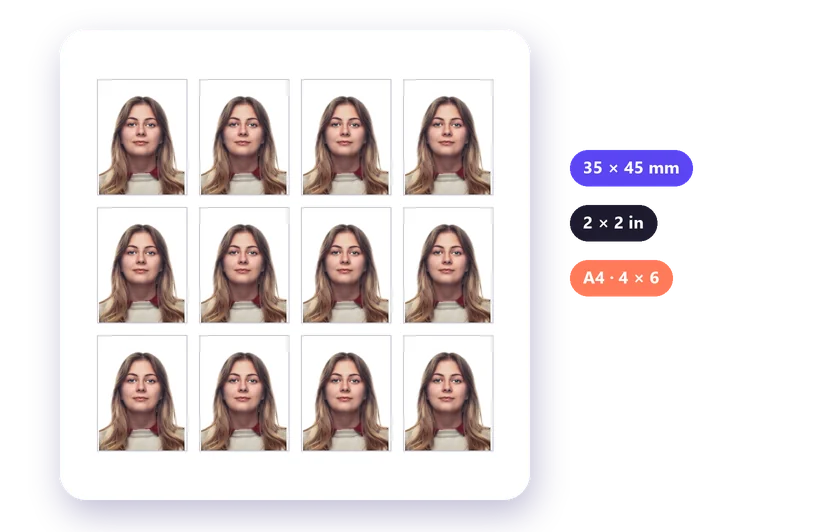
- Passport photos: make a white background and print a sheet of copies. See the passport photo print sheet guide.
Troubleshooting on mobile
- The upload button does nothing: check that your browser is up to date and that it's allowed to access your photos in the phone's settings.
- The photo is too large: files up to 15 MB are supported. Very large photos are scaled to 2,560 pixels on the long side automatically.
- The download doesn't appear: look in the Files app (iPhone) or the Downloads folder (Android), and allow downloads if your browser asks.
- The page is slow: close other tabs and apps, and use Wi-Fi for many photos at once.
Your photos stay private
Photos on your phone are personal. When you remove a background here, the image is sent securely, processed only to remove the background and then discarded; nothing is stored or added to a gallery on our side, and there's no account linking your photos to you. The result is created in your browser and saved only on your own device. Read our privacy policy for the details.
Frequently asked questions
Is it really free on mobile? Yes. Removing backgrounds and downloading in full quality is free, without an account or a watermark.
Where is my downloaded image? On iPhone, in the Files app under Downloads (save it to Photos from there). On Android, in the Downloads folder, which also appears in your gallery.
Does it use a lot of mobile data? Only the photo is uploaded and the result downloaded, so it uses about as much data as sending the photo in a message. Use Wi-Fi for many large photos.
Can I use photos taken in portrait mode or HEIC format? JPG, PNG and WebP are supported. iPhones usually convert HEIC photos to JPG automatically when you upload them in the browser.
Is it safe to upload my photos? Your images are processed only to remove the background and are not stored. See our privacy policy.