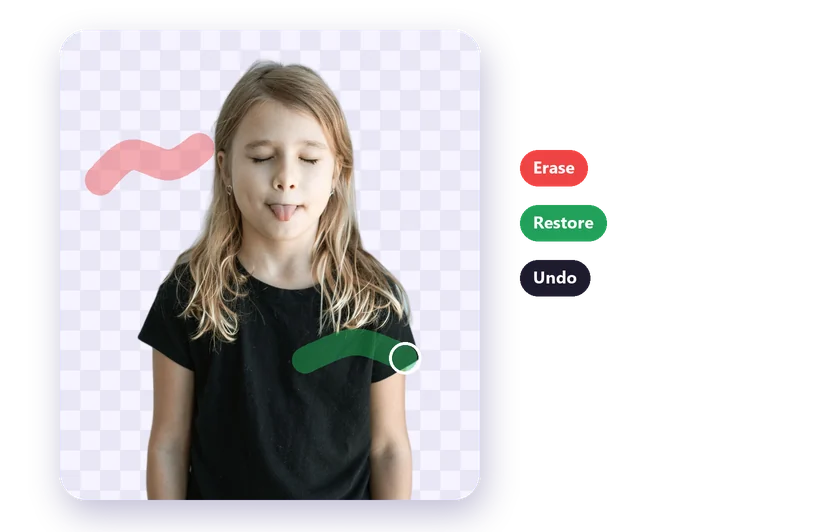
Automatic background removal works on almost any photo, but some photos give noticeably cleaner edges than others. These tips help you get a crisp result every time.
1. Make the subject stand out
The AI looks for the main subject. A person or product that is clearly separated from the background, in colour, brightness or focus, is the easiest case.
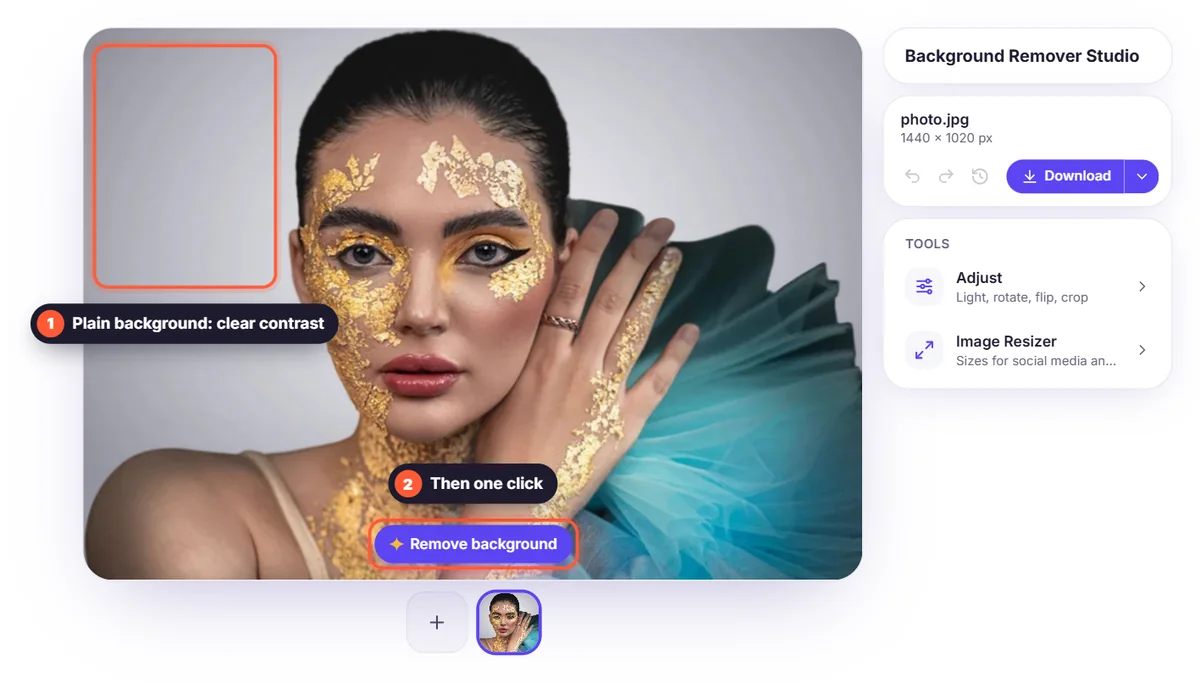
2. Avoid matching colours
A black jacket in front of a dark wall, or a white mug on a white table, makes the edge hard to see, for people and for AI. Pick a background with some contrast.
3. Use soft, even light
Hard shadows can be mistaken for part of the subject. Daylight from a window or a cloudy sky gives soft shadows and clean edges.
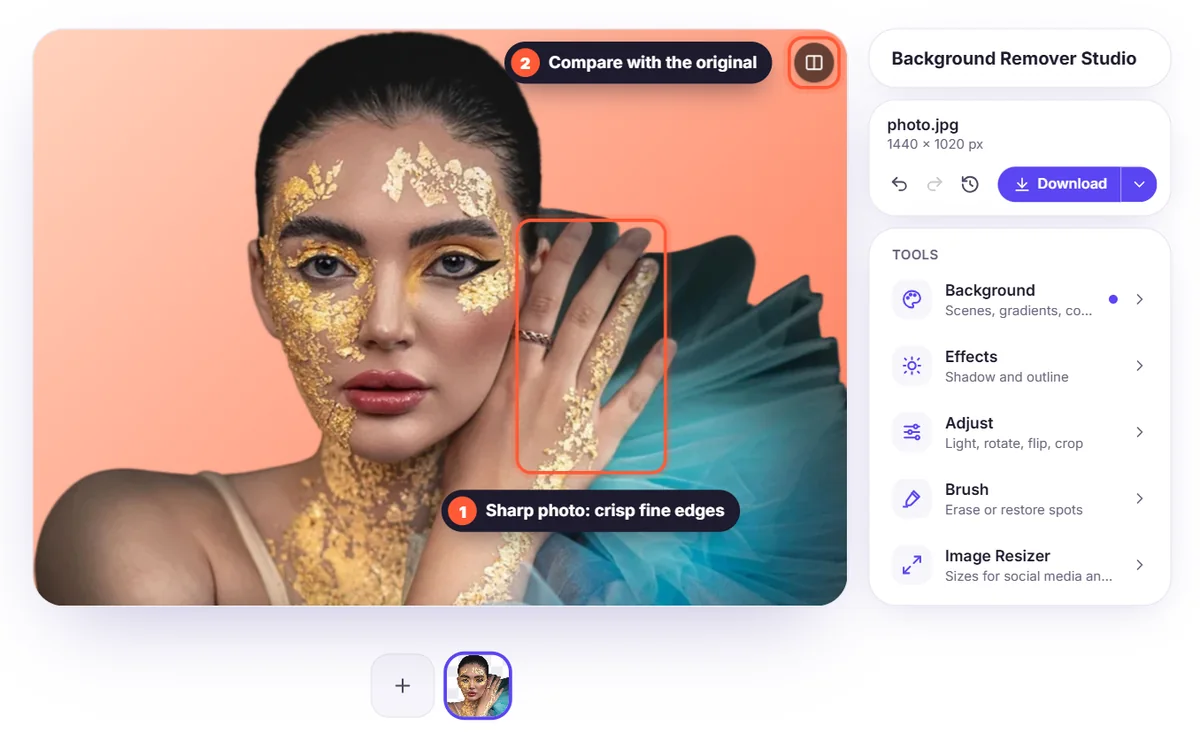
4. Keep it sharp
Motion blur and out-of-focus edges become soft, see-through edges in the cutout. Hold the camera steady and focus on the subject.
5. Leave a little space around the subject
Don't crop hair, hands or product edges at the frame. Anything outside the photo can't be cut out.
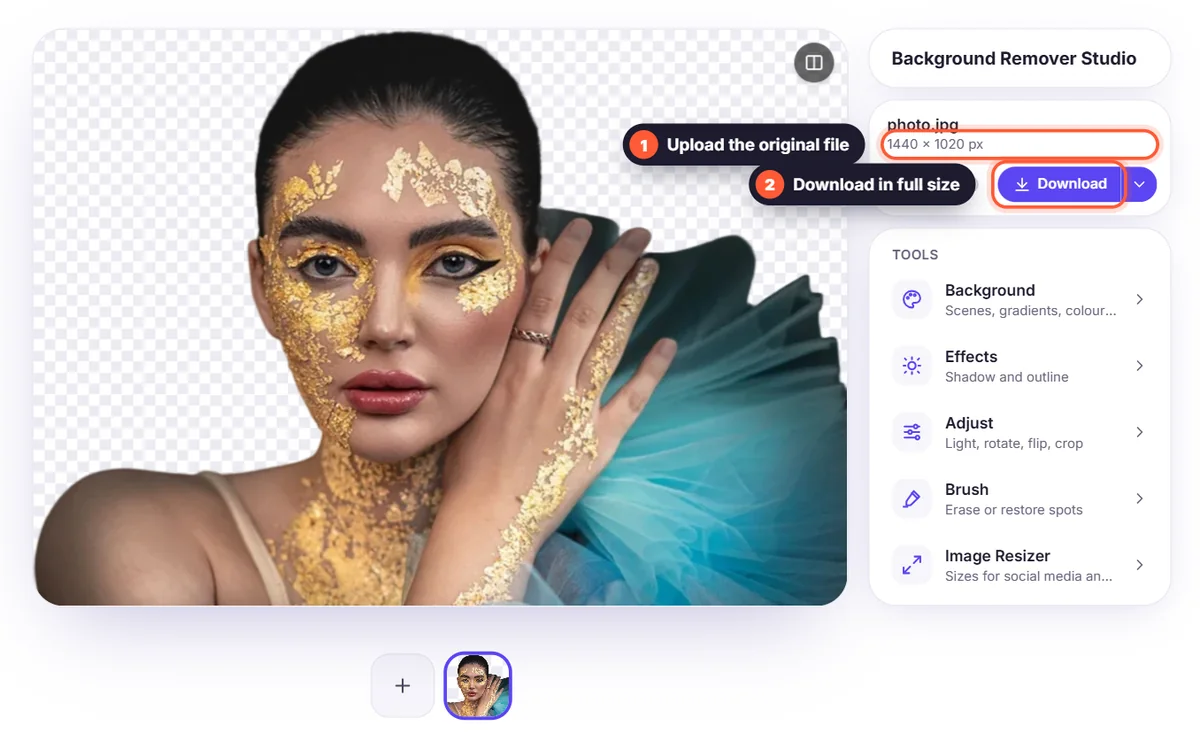
6. Upload the original, not a screenshot
Screenshots and heavily compressed images lose fine detail like hair. Upload the original file when you can.
7. Touch up the details by hand
For smoke, fire, glass, busy backgrounds or very fine hair, check the result zoomed in. Open the Brush: Erase paints away leftover background, and Restore brings back parts of the subject.