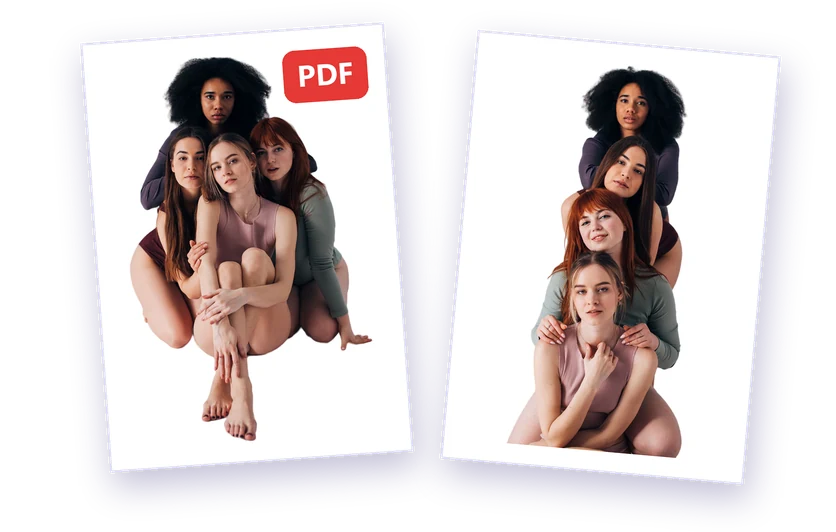
A PDF is the easiest way to send, print or attach photos: it looks the same on every device and keeps several pictures together in one file. Here's how to use a free photo to PDF converter, and how to give your photos a clean background before you save them.
Convert photos to PDF with BGSwaper
- Upload your photo to the photo to PDF converter. JPG, PNG and WebP images all work.
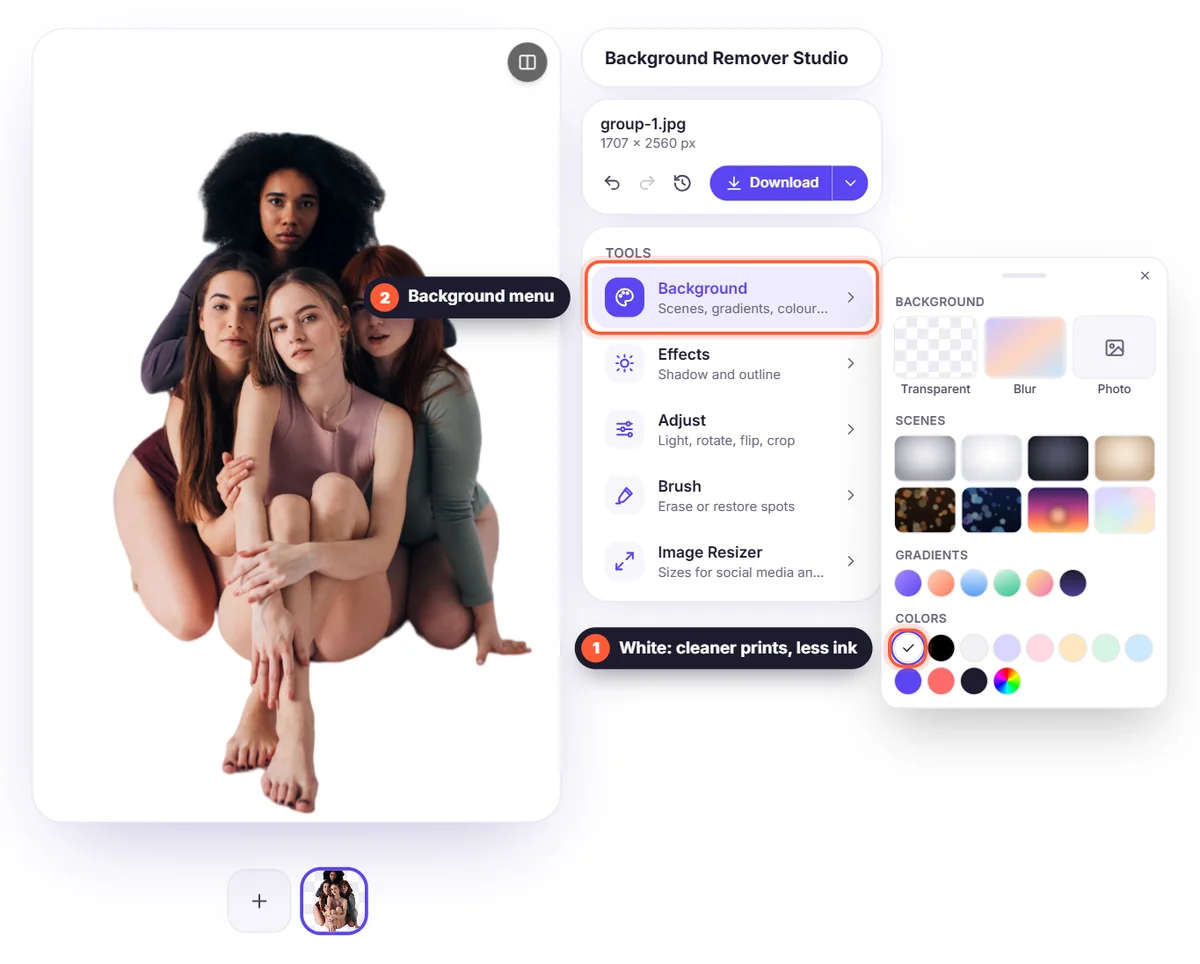
- Click Remove background to cut out the subject, then keep it white or pick a new colour, a blur or your own image under Background. Or skip this step to keep the photo as it is.
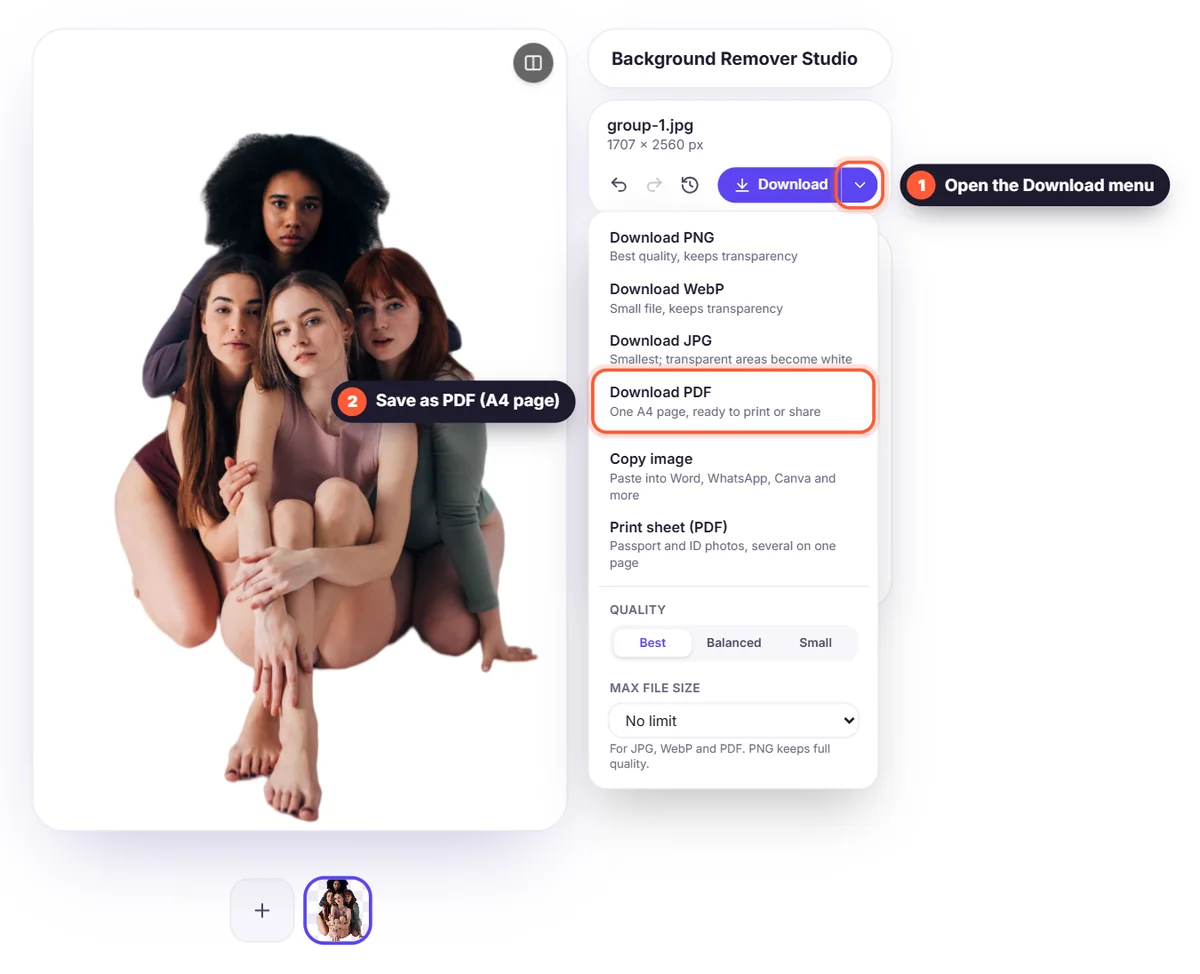
- Open the Download menu and choose PDF. Your photo is saved as a PDF on an A4 page.
Turn several photos into one PDF
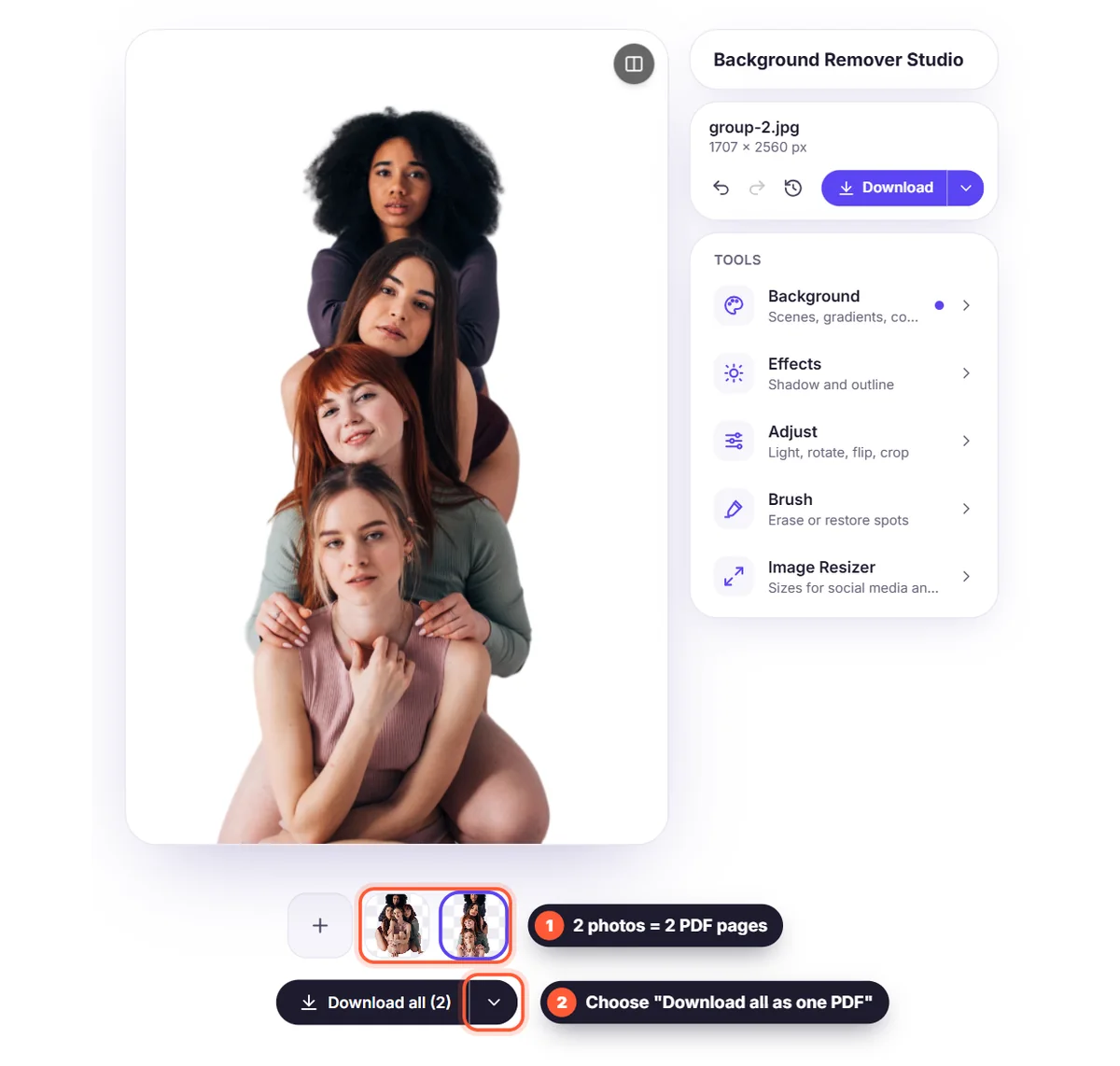
Add more photos to the editor, one after another. When they are done, choose "Download all as one PDF" under the photos: you get a single PDF with one A4 page per photo, in the order you added them. It's handy for product sheets, portfolios and sets of documents. Need passport or ID photos? Use Print sheet (PDF) in the Download menu to get several copies at an exact size on one page.
Why clean up the background before making a PDF?
- Cleaner prints: a white background uses less ink and looks professional on paper.
- Consistent pages: product photos or portraits on the same background look like one set.
- Documents and forms: signatures and logos sit neatly on the page without a grey box. See how to remove a signature background.
- Smaller files: a plain background compresses better than a busy one.
Save a photo as PDF without any converter
If you only need a quick PDF of a normal photo, your device can do it too:
- Windows: open the photo, choose Print, and select "Microsoft Print to PDF" as the printer.
- Mac: open the photo in Preview, then choose File > Export as PDF.
- iPhone: open the photo, tap Share > Print, then use Share again on the preview and save the PDF to Files.
- Android: open the photo, choose Print, and select "Save as PDF" as the printer.
These built-in options keep the original background. Use BGSwaper when you want a clean white or new background in your PDF.
Tips for a sharp photo PDF
Start with the original, full-size photo, not a screenshot. Every page is A4 (landscape for wide photos), and each photo is centred without being cropped or stretched. For text documents such as receipts, take the photo straight from above in good light. Want a white background instead of a transparent one? Read how to remove a white background and how to change the background of a photo.