
A logo with a white box around it looks unprofessional on a coloured website header, a dark slide, a product label or a T-shirt. What you need is a transparent logo: only the logo itself, with the background removed so it sits cleanly on anything. Here's how to remove the background from a logo and get a transparent PNG you can use anywhere, plus how to deal with thin text, small gaps and logos that need to work on dark backgrounds.
First choice: the original logo file
If you have the original design file (SVG, AI, EPS or PDF), export the logo from there with a transparent background: vector files stay sharp at any size. Ask your designer or check the email where you first received the logo. A background remover is the answer when all you have is a JPG or PNG with a white or coloured background, for example a logo copied from an old website, a document or a screenshot.
Remove a logo background in 3 steps
- Upload the largest version of the logo you can find to the background remover.
- Click Remove background, then check fine details such as thin text and small gaps between letters.
- Download as PNG to keep the transparency.
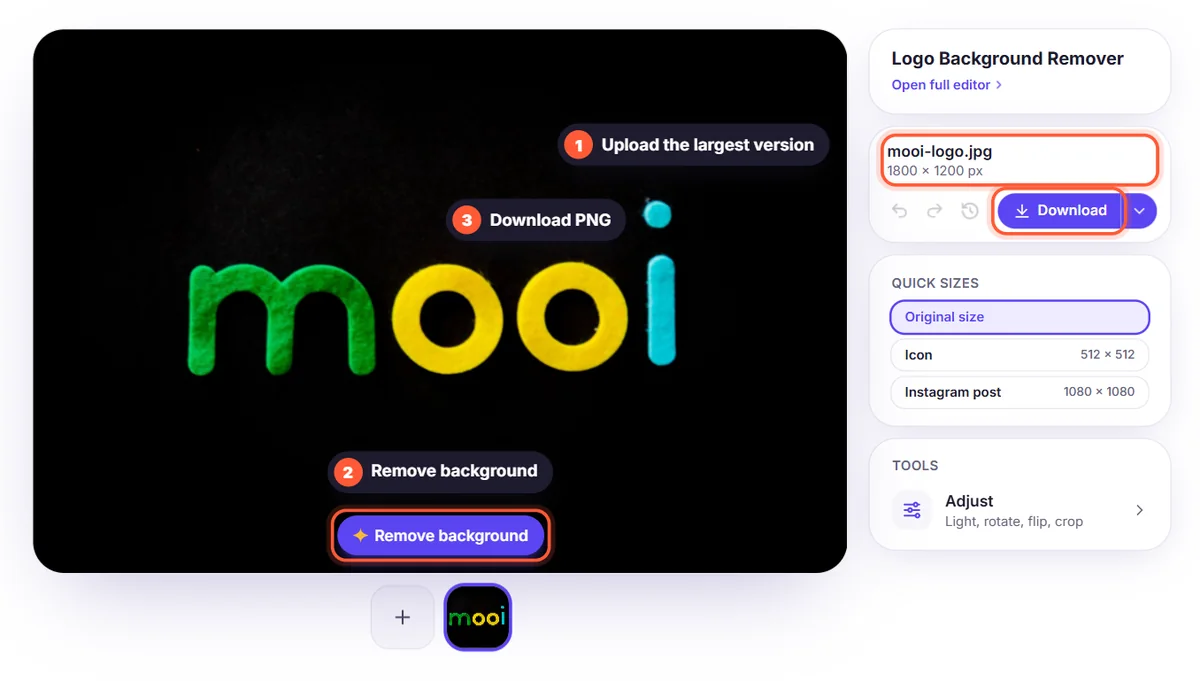
It's free, it takes a few seconds, and the result has no watermark, so you can use it for business.
Find the best source image
- Bigger is better: a logo that is 2000 pixels wide gives a much cleaner cutout than one that is 200 pixels wide. Search your emails, website files and old documents for the largest version.
- Avoid screenshots of screenshots: every copy adds blur and compression noise around the edges.
- A PDF works: if the logo is on a letterhead or brochure in PDF, zoom in a lot and take a screenshot of just the logo; it's often sharper than a small JPG.
- Plain background: a logo on a single solid colour separates more cleanly than one on a photo or pattern.
Logos with text and small gaps
Gaps inside letters, like the holes in "o", "e" and "a", and spaces between separate shapes are the hardest part. Zoom in and switch the background to a dark colour in the editor to check them. If some background remains inside a small gap, open Brush, choose Erase, set a small brush size and paint it away. If a thin line or a dot was removed, switch to Restore to bring it back. For logos with many fine details, upload the largest version you have.
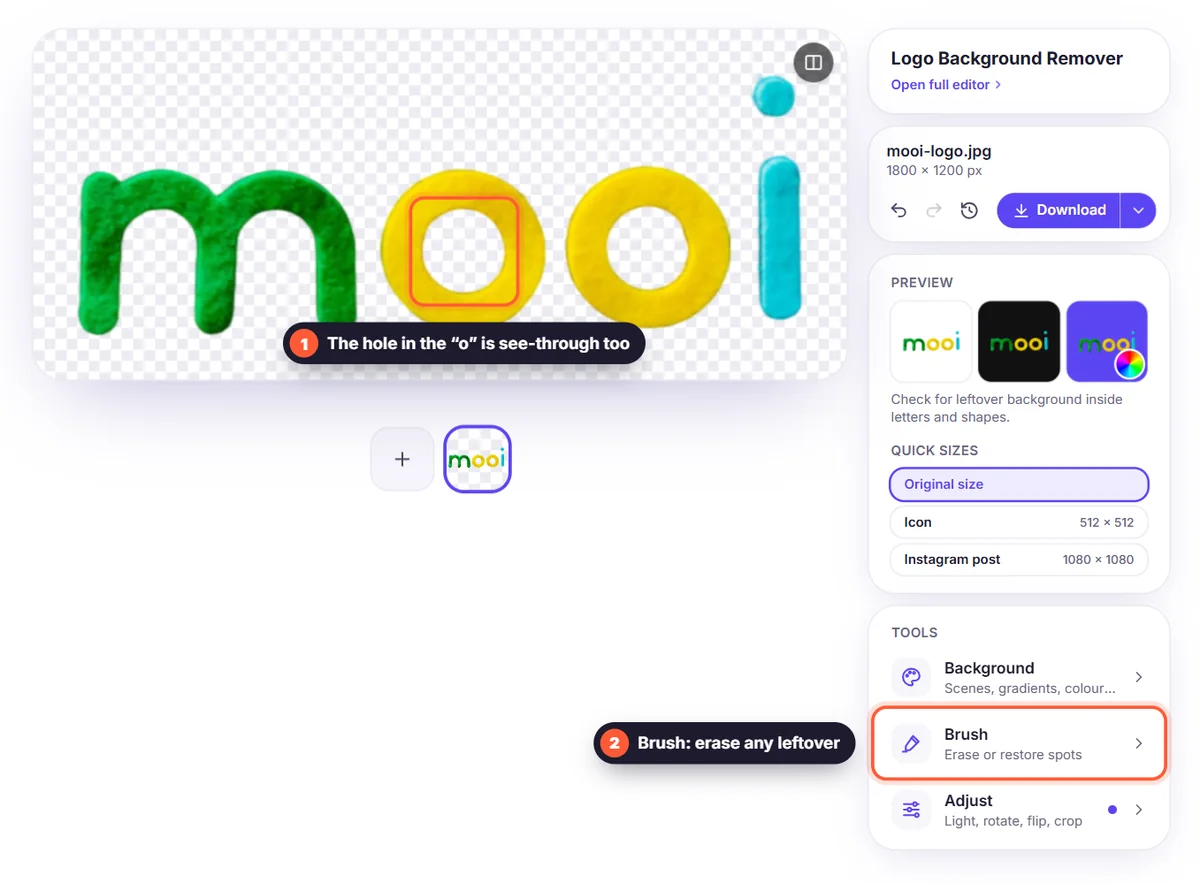
If the logo is only text, or text with a very simple shape, and the cutout still looks rough, the original image is probably too small. Start from a larger, sharper version of the logo; that helps more than any amount of editing.
Trim and size your logo
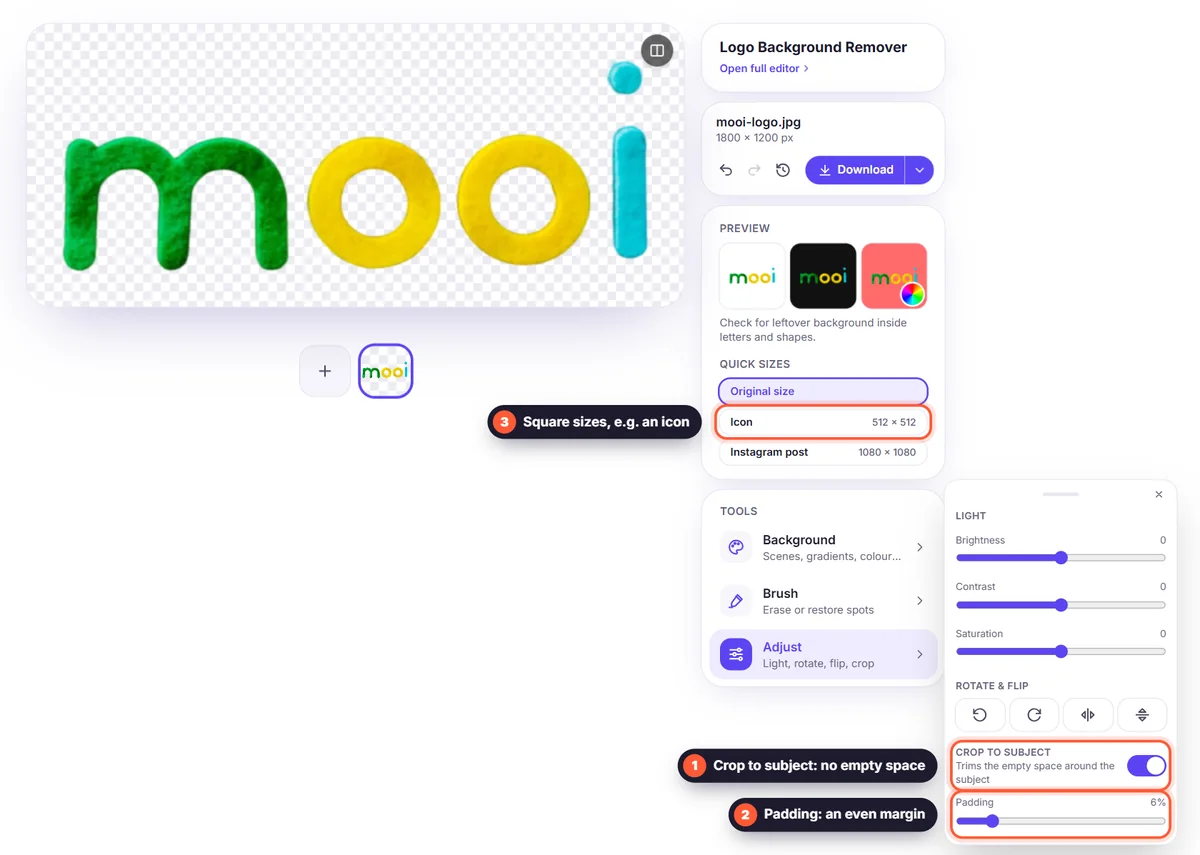
Use Adjust → Crop to subject to remove the empty space around the logo, so it's exactly as big as the logo itself and easy to align. Use Padding if you want a small, even margin. For a specific size, such as a square social media profile picture, open the image resizer and pick a preset or type your own size.
Test your transparent logo on different backgrounds
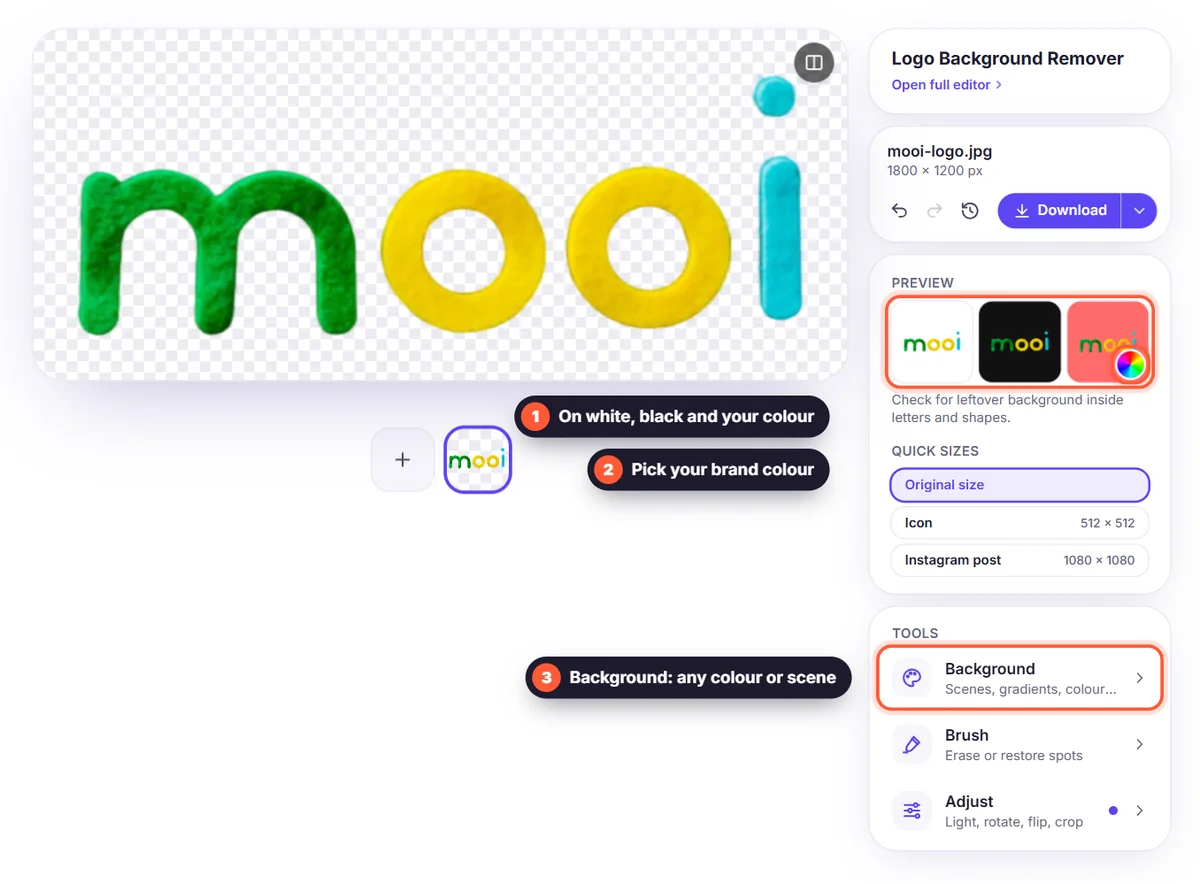
Before you use it, place the logo on white, black and your brand colour, using the Background colours in the editor. A logo designed for a white background may disappear on dark backgrounds: dark text on a dark header can't be read. In that case you need a light version of the logo for dark backgrounds, usually white or a light brand colour. Ask your designer for one, or have one made from the original file.
PNG, WebP or SVG?
- PNG: the standard for transparent logos. Works in Word, PowerPoint, Canva, email signatures and almost everywhere else.
- WebP: keeps transparency in a smaller file, ideal for websites.
- SVG: a vector format that stays sharp at any size. It can't be made from a photo by removing the background; it comes from the designer's original file.
- JPG: not suitable for a transparent logo, because JPG has no transparency.
More about formats in PNG, JPG or WebP.
Where to use a transparent logo
- Website headers, favicons and email signatures.
- Presentations, invoices, quotes and documents.
- Packaging, labels, T-shirts and merch mockups.
- Social media posts, thumbnails and video intros.
- Watermarks on your photos: place the transparent logo in a corner at low opacity in your design tool.
Use logos responsibly
Only remove the background from logos you have the right to use: your own, your employer's or a client's with permission. Brand logos of other companies are usually protected by trademark law, and many brands publish official transparent logos in a press or media kit, which are always the best source.
Make a white version for dark backgrounds
Many brands use a dark logo on light backgrounds and a white one on dark backgrounds. A background remover can't recolour your logo, but you can check exactly how each version looks before you order or create one: set the editor's background to your darkest brand colour, then to black, and see whether every part of the logo stays readable. Thin lines and small text are usually the first to disappear. Show these previews to your designer; they make it much easier to explain what you need.
Common problems and quick fixes
- A thin white edge around the logo: the original image was compressed. Erase the edge with the Brush, or start from a larger PNG version.
- Background stuck inside letters: erase it with a small brush, zoomed in.
- Part of the logo removed: light parts of a logo on a light background can be mistaken for background. Bring them back with Restore.
- Shadow or 3D effect lost: soft effects in a logo can be partly removed. Add a shadow back in Effects if you need it.
Check the logo at its real size
A logo is often used much smaller than the file you edit: in an email signature, on a business card or as a social media profile picture. Before you finish, look at it at the size it will actually be used. Small gaps that look fine when zoomed in can fill up at a small size, and thin outlines can disappear. If that happens, a simplified version of the logo, with fewer details, usually works better for small sizes. A favicon or app icon, for example, is often just the symbol without the text.
Frequently asked questions
How do I make my logo background transparent for free? Upload it, click Remove background and download as PNG. No account, no watermark.
Why does my logo still have a white box? You probably saved or inserted a JPG. Download the result as PNG and use that file.
My logo looks blurry. Can I make it sharper? Removing the background can't add detail. Start from the largest, sharpest version, or ask for the original vector file.
Can I change the colour of my logo? Not with the background remover. For a white version for dark backgrounds, use the original design file.
Can I use the transparent logo commercially? Yes, as long as you have the rights to the logo itself. You keep all rights to your images and results.