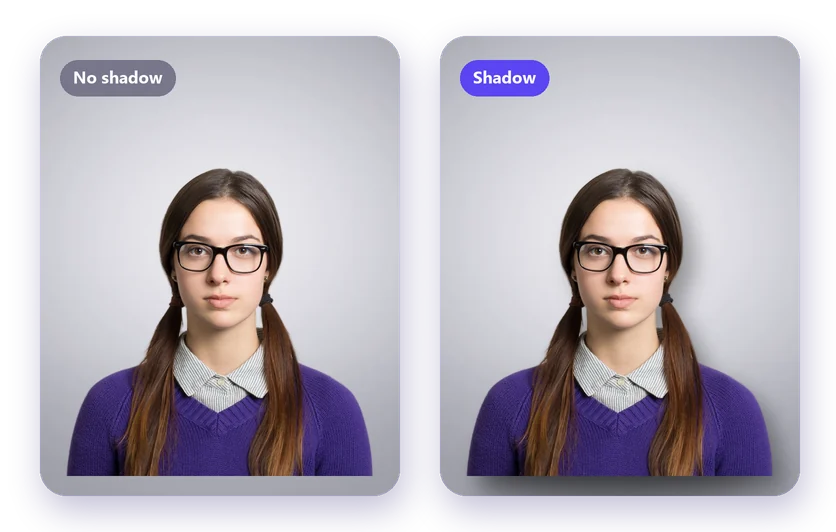
A cutout on a plain background can look flat, as if it floats in the air. A soft shadow fixes that. You can add a shadow to an image online for free, without Photoshop, right after removing the background.
How to add a shadow to an image
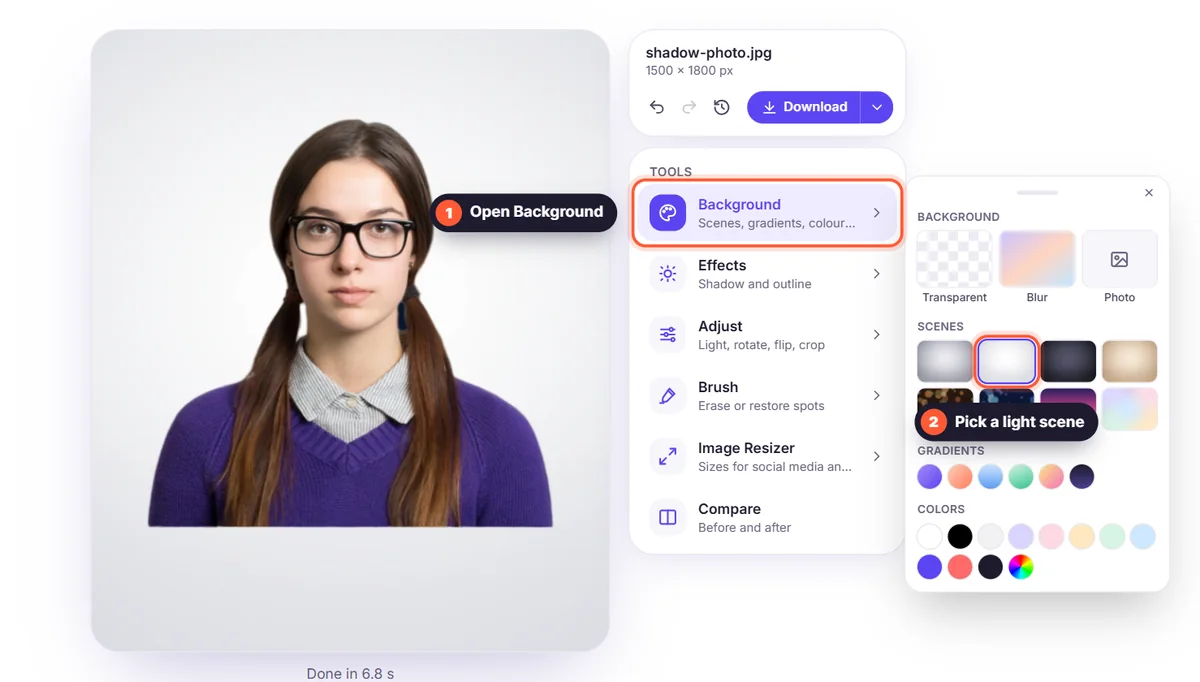
- Upload your photo to the background remover and click Remove background.
- Choose a new background, for example a studio scene or white, under Background.
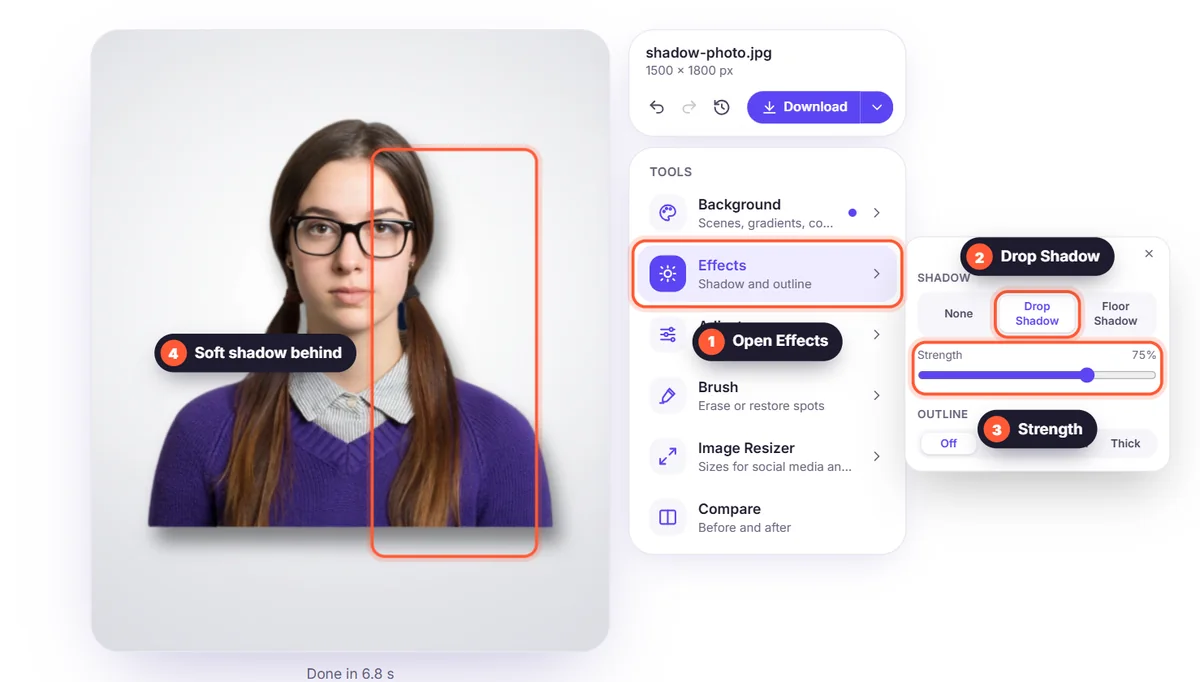
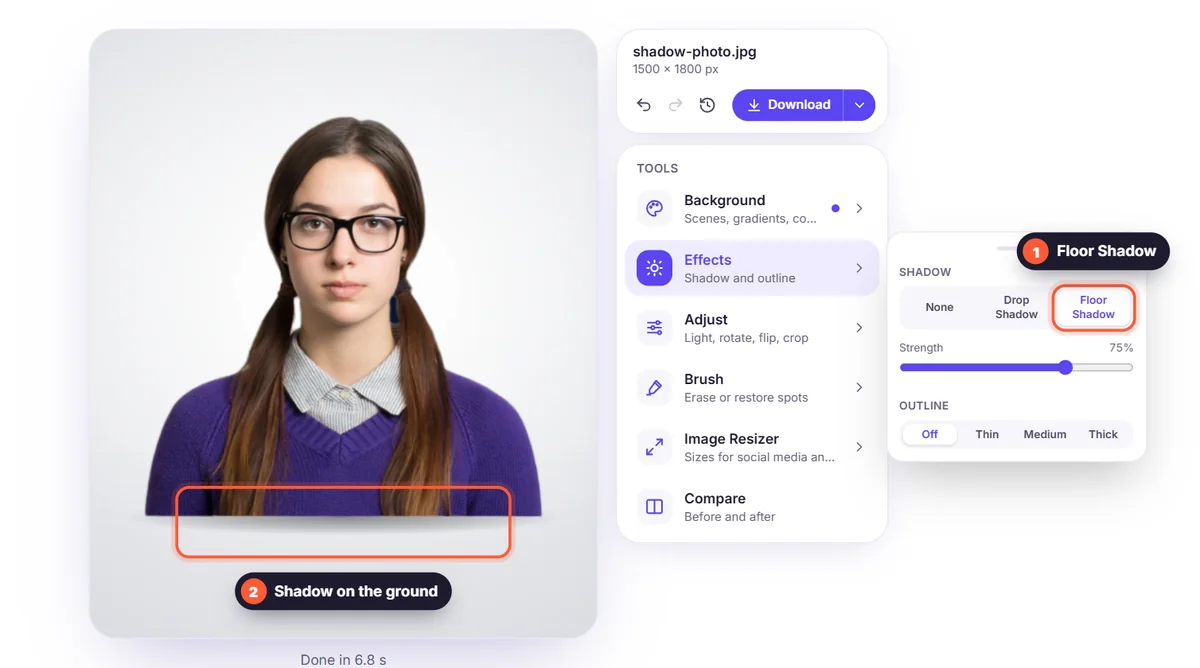
- Open Effects and choose Drop Shadow or Floor Shadow.
- Set the Strength with the slider, then download your image.
Drop Shadow or Floor Shadow?
- Drop Shadow: a soft shadow just behind the subject, as if it stands a little in front of the background. Great for portraits, logos and stickers.
- Floor Shadow: a soft oval under the subject, as if it stands on the ground. Best for product photos, shoes and furniture.
Shadows for product photos
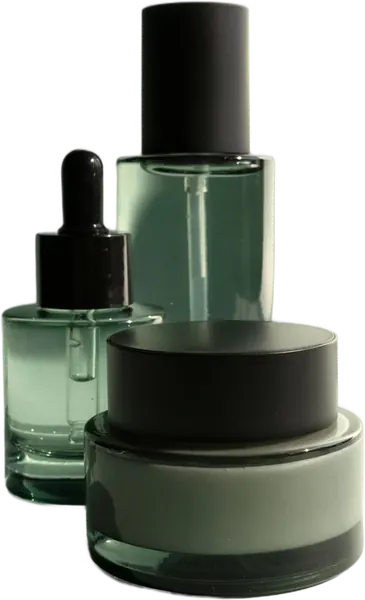
Marketplaces like a pure white background, but a product without any shadow can look unreal. A light floor shadow keeps the background white while giving the product weight. Read our guide to product photos on a white background.
Add an outline too
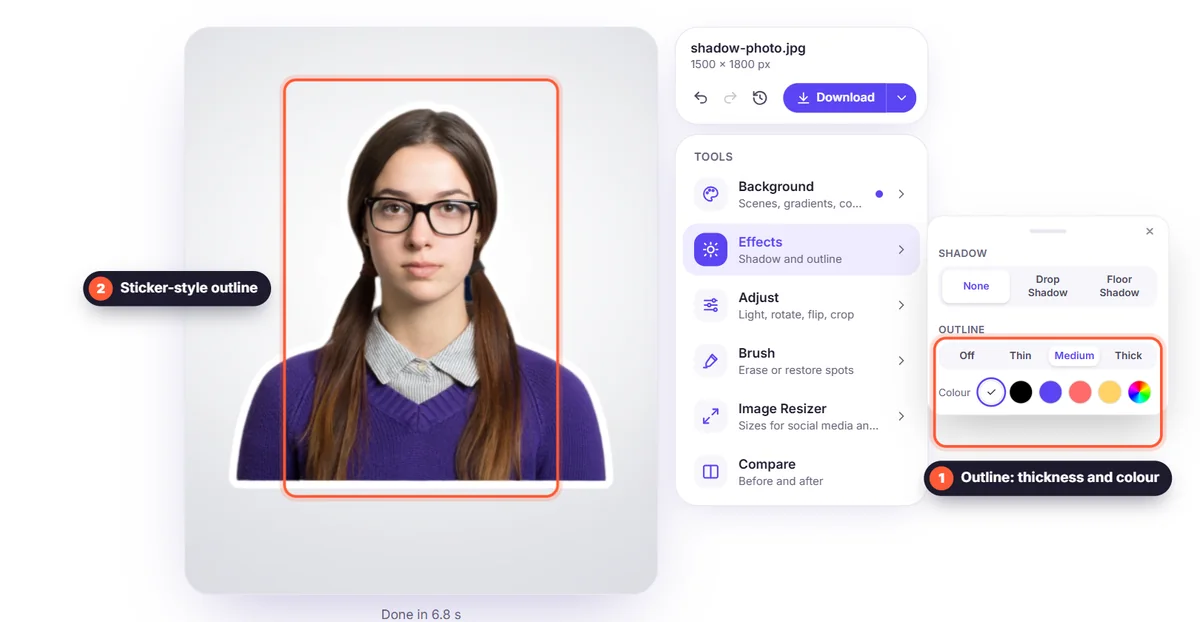
In the same Effects menu you'll find Outline: a white or coloured line around the subject, like a sticker. It's popular for YouTube thumbnails, social media posts and WhatsApp stickers.
Tips
- Use a subtle strength: the best shadow is one people don't notice.
- Match the shadow to the scene: soft on light backgrounds, a little stronger on darker ones.
- After adding a shadow, use the image resizer to fit the photo to your shop or social media.